Unlocking the full potential of your Steam Deck with PC Game Pass is a truly game-changing experience in 2026. This comprehensive guide navigates through the intricate steps required to seamlessly integrate Microsoft's vast library directly onto your portable powerhouse. We explore various methods for optimal performance, covering both cloud streaming and local installation solutions. Discover essential settings optimization techniques to minimize latency and eliminate frustrating FPS drops, ensuring a smooth gaming session. Learn about the crucial role of updated drivers and specific configurations that can prevent stuttering fix issues. Whether you are tackling an expansive RPG, engaging in a fast-paced FPS, or strategizing in a MOBA, this guide provides all the necessary tips. We also delve into the nuances of network stability to combat lag, enhancing your overall gaming enjoyment. Prepare to transform your Steam Deck into the ultimate portable Game Pass machine, ready for any adventure. This detailed walkthrough ensures you maximize your handheld gaming capabilities with Xbox's expansive catalog, offering pro strategies for every beginner.
Welcome, fellow Deckheads and Game Pass enthusiasts, to the ultimate living FAQ for bringing Microsoft's incredible gaming library to your beloved Steam Deck! This guide is meticulously updated for the latest 2026 patches and software advancements, ensuring you have the most accurate and actionable information at your fingertips. We dive deep into every aspect of this popular integration, from initial setup to advanced optimization techniques and troubleshooting common issues. Whether you are a beginner just starting or a seasoned Pro seeking an edge, our comprehensive answers cover everything you need to know. Get ready to unlock the true potential of your portable gaming experience with our expert tips, tricks, and detailed walkthroughs. Let's make your Steam Deck the ultimate portable gaming machine!
Beginner Questions
Is PC Game Pass on Steam Deck officially supported by Microsoft?
No, as of 2026, there is no official native integration or dedicated app from Microsoft for PC Game Pass directly on SteamOS. Users currently rely on workarounds like Xbox Cloud Gaming via browser or installing Windows on the Steam Deck to access the Game Pass library.
How do I set up Xbox Cloud Gaming on my Steam Deck?
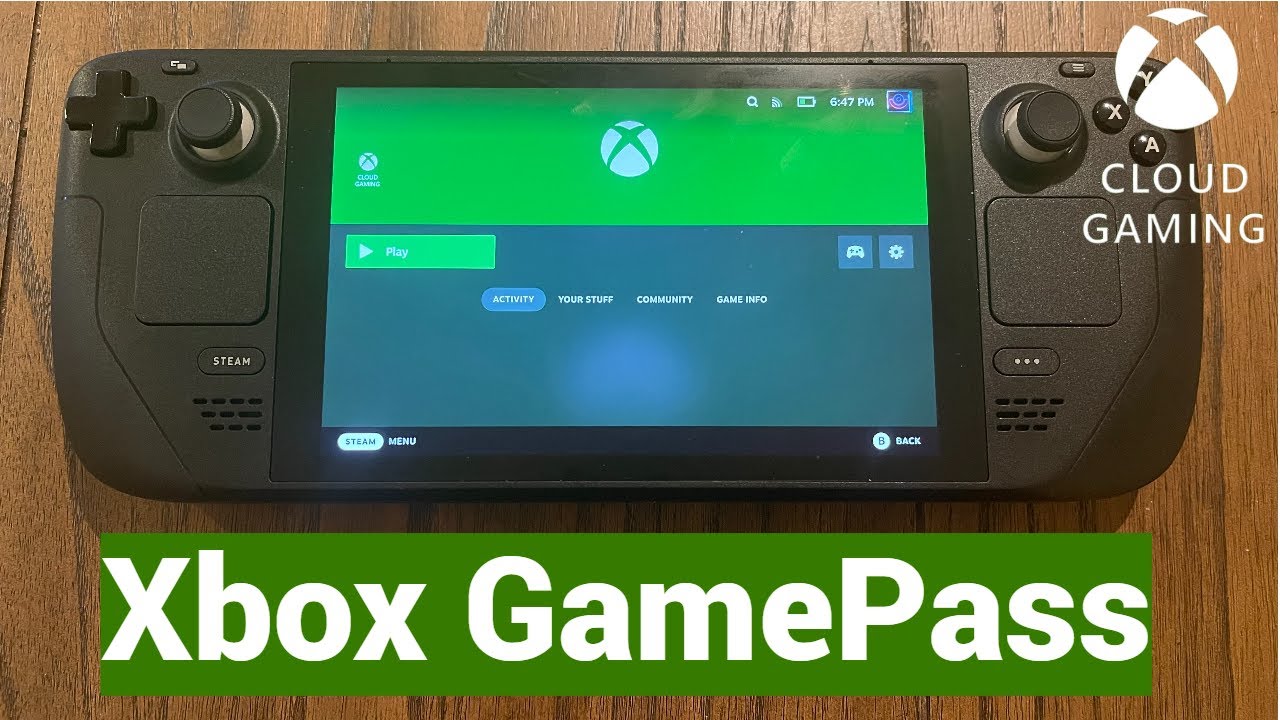
Setting up Xbox Cloud Gaming involves installing Microsoft Edge through the Discover Software Center in Desktop Mode. Then, add Edge as a non-Steam game, configure its launch options for full-screen kiosk mode, and navigate to xbox.com/play to sign in with your Game Pass Ultimate account.
Do I need an Xbox Game Pass Ultimate subscription for Steam Deck?
Yes, an Xbox Game Pass Ultimate subscription is essential for accessing PC Game Pass titles on your Steam Deck. This subscription tier includes Xbox Cloud Gaming, which is the most straightforward method, and also grants access to the PC Game Pass library for Windows installations.
Can I play Game Pass games offline on my Steam Deck?
Playing Game Pass games offline is only possible if you install Windows on your Steam Deck and download games locally. Xbox Cloud Gaming requires a constant internet connection for streaming, meaning offline play is not an option with that method.
Installation & Setup
What is the easiest way to get Game Pass on Steam Deck?
The easiest way is using Xbox Cloud Gaming via a web browser like Microsoft Edge, which requires no Windows installation. It streams games, demanding only a Game Pass Ultimate subscription and a stable internet connection for immediate access to the library.
How do I install Windows on my Steam Deck for Game Pass?
Installing Windows involves preparing a bootable USB drive, installing Windows 10 or 11 onto a high-speed SD card or internal storage partition, and then installing essential Steam Deck drivers. Afterward, you can install the Xbox app directly and play Game Pass titles natively.
Can I dual-boot Windows and SteamOS on my Steam Deck?
Yes, you can absolutely dual-boot Windows alongside SteamOS. This requires partitioning your internal storage or using separate SD cards for each operating system. A dual-boot setup allows you the flexibility to switch between native SteamOS gaming and a Windows environment for Game Pass.
What drivers do I need for Windows on Steam Deck for Game Pass?
For Windows on Steam Deck, you'll need specific drivers for Wi-Fi, Bluetooth, audio, and especially AMD graphics. These drivers are typically provided by Valve on their support website and are crucial for optimal performance, ensuring all hardware functions correctly with Game Pass titles.
Performance & Optimization
How can I improve FPS and reduce lag in Game Pass games on Steam Deck?
To improve FPS and reduce lag, optimize in-game graphics settings (lower shadows, anti-aliasing). Ensure strong Wi-Fi (5GHz or wired) for cloud gaming. For native play, update drivers, set custom TDP limits, and enable FSR in SteamOS to boost frame rates efficiently.
What are the best settings for cloud gaming on Steam Deck?
For optimal cloud gaming, use Microsoft Edge in full-screen kiosk mode for best compatibility. Connect to a strong 5GHz Wi-Fi 6 network or a wired Ethernet connection to minimize ping and lag. Keep your Steam Deck's firmware updated for the latest streaming improvements.
Does FSR (FidelityFX Super Resolution) work with Game Pass games?
Yes, FSR can work with Game Pass games, especially when playing natively on a Windows installation on your Steam Deck. Additionally, SteamOS's global FSR toggle can upscale unsupported games for cloud streaming, providing a visual boost and potentially better performance.
Myth vs Reality: Does installing Windows void my Steam Deck warranty?
Reality: Installing Windows on your Steam Deck typically does not void the warranty. Valve allows users to modify the software. However, any physical damage caused during the installation process or by improper handling while running Windows would not be covered.
Troubleshooting & Bugs
My Game Pass games are stuttering, how can I fix this?
Stuttering often indicates a performance bottleneck. For cloud gaming, improve your internet connection. For native play, update graphics drivers, check for sufficient VRAM allocation in BIOS, and adjust in-game settings. Disabling shader pre-caching can also sometimes resolve specific stuttering issues.
Why is my controller not working with Xbox Cloud Gaming on Steam Deck?
Ensure your Steam Deck is in Desktop Mode when setting up the browser shortcut, and configure it to launch with controller support. Sometimes clearing browser cache or re-adding the shortcut helps. Make sure the controller layout is correctly assigned within Steam for the browser shortcut.
Myth vs Reality: Game Pass games on Steam Deck always have terrible graphics.
Reality: While cloud streaming quality depends on internet speed, native Game Pass games on Windows can look excellent. Optimizing settings allows a balance between visuals and performance, often yielding graphics comparable to other handhelds or low-end PCs.
Builds & Classes (General Gaming)
Can I play competitive FPS games like Halo Infinite on Steam Deck?
Yes, you can play competitive FPS games like Halo Infinite. Cloud streaming offers convenience, while a Windows installation provides better native performance. For precision, many players utilize the Steam Deck's gyro aiming or connect an external gaming mouse for a more traditional FPS experience.
Are MOBA games like League of Legends playable on Steam Deck?
MOBA games like League of Legends are technically playable, but their keyboard and mouse-centric design can be challenging. Extensive controller remapping is needed for comfortable play. For serious competitive MOBA gaming, an external keyboard and gaming mouse via a USB-C hub are highly recommended.
Which RPG titles from Game Pass are best suited for Steam Deck?
RPGs with slower pacing and robust controller support are ideal, like Starfield or Sea of Thieves. Titles with engaging narratives and exploration thrive on the Deck's portable nature, allowing quick saves and immersive sessions on the go, perfect for the genre's typical longer playtimes.
Endgame Grind & Advanced Tips
How do I maximize battery life while playing Game Pass on Steam Deck?
Maximize battery life by lowering screen brightness, enabling SteamOS's power-saving modes, and setting a custom TDP limit per game. For cloud streaming, a strong Wi-Fi signal is more energy-efficient than struggling with a weak one. Use darker themes where available to reduce screen power draw.
Myth vs Reality: Game Pass on Steam Deck is only good for indie games.
Reality: While indie games perform exceptionally well, modern AAA titles from Game Pass are entirely playable on Steam Deck. Whether via cloud streaming or native Windows installation, the Deck handles graphically demanding RPGs, FPS, and strategy games, expanding beyond just indie offerings.
Multiplayer Issues
Why am I having trouble with multiplayer in Game Pass games on Steam Deck?
Multiplayer issues can stem from various sources. For cloud gaming, a high-latency internet connection is a common culprit. For native Windows installations, ensuring anti-cheat compatibility, proper firewall settings, and updated network drivers are crucial. Some anti-cheat systems might flag a Steam Deck's unique hardware or OS setup.
Myth vs Reality: Anti-cheat software blocks all Game Pass games on Steam Deck.
Reality: While some aggressive anti-cheat systems can cause issues, not all Game Pass games are blocked. Many popular titles with less stringent anti-cheat or server-side anti-cheat work fine. Cloud streaming bypasses this entirely, as anti-cheat runs on Microsoft's servers.
Bugs & Fixes
What should I do if the Xbox app isn't launching on Windows on Steam Deck?
If the Xbox app isn't launching, first ensure your Windows installation is fully updated, including the Microsoft Store. Try repairing or resetting the Xbox app through Windows settings. Reinstalling the app might also resolve the issue. Check if all necessary Steam Deck Windows drivers are correctly installed.
My Game Pass game shows a black screen after launching. How do I fix it?
A black screen often indicates a graphics driver issue or a resolution mismatch. Update your AMD graphics drivers. Try launching the game in a different compatibility mode or a lower resolution through Windows display settings. For cloud gaming, clear your browser's cache or try a different browser.
Myth vs Reality
Myth vs Reality: The Steam Deck's controls are terrible for PC Game Pass games.
Reality: The Steam Deck's controls are highly customizable and can be excellent. While some PC games are optimized for keyboard and mouse, the Deck offers trackpads, gyro aiming, and extensive remapping, making even complex PC titles feel intuitive with a little setup. Many Pro players love the gyro.
Future & Updates
How will 2026 Game Pass updates affect Steam Deck compatibility?
2026 Game Pass updates are likely to bring performance enhancements, new titles, and potentially better cloud streaming technology. These generally improve the experience on Steam Deck, whether through browser-based cloud gaming or native Windows play, offering a richer, smoother library. New drivers will be key.
Still have questions?
For more in-depth guides on specific games or advanced Steam Deck builds, check out our popular guides on 'Steam Deck FPS Boost Guide 2026' and 'Ultimate Steam Deck Windows Setup Walkthrough'.
Can you truly play PC Game Pass games directly on your Steam Deck, unleashing a torrent of high-fidelity entertainment? This burning question echoes across every gaming forum in 2026, creating a buzz hotter than a summer blockbuster premiere. Many dedicated gamers dream of taking their massive Game Pass library on the go, transforming Valve's portable marvel into an unstoppable, all-in-one gaming device. The thrilling whispers are true, my friends; this magnificent fusion of two gaming titans is not just a pipe dream anymore. Imagine diving into the latest blockbuster RPG titles or competitive FPS battles while lounging anywhere you please. The exhilarating journey to achieving this portable paradise might seem complex at first glance, but with the right guidance, it is surprisingly accessible for anyone. We are here to spill all the secrets, giving you the insider scoop on making your Steam Deck and PC Game Pass a match made in gaming heaven. Get ready to revolutionize your mobile gaming experience like never before!
The current landscape of handheld gaming has truly evolved, bringing unprecedented power to your fingertips. The Steam Deck, with its Linux-based SteamOS, offers a surprisingly robust platform for diverse gaming needs. Integrating PC Game Pass, a service traditionally tied to Windows and Xbox ecosystems, requires clever workarounds and specific configurations. However, the rewards for mastering these steps are immense, opening up hundreds of fantastic games. This guide will help you navigate the necessary technical hurdles with ease and confidence. We will cover everything from initial setup to advanced settings optimization, ensuring your experience is as seamless as possible. Prepare to unlock a new dimension of portable gaming freedom with our expert walkthrough and invaluable tips.
Unlocking PC Game Pass on Your Steam Deck: The Core Methods
Bringing PC Game Pass titles to your Steam Deck primarily involves two distinct but equally viable approaches. Each method offers unique advantages and minor trade-offs, depending on your internet connection and preferences. The first involves utilizing cloud streaming services, specifically Xbox Cloud Gaming, which streams games directly from Microsoft's servers. This option demands a stable, high-speed internet connection for optimal performance and minimal lag. The second method, more intricate, involves installing Windows directly onto your Steam Deck. This transforms your portable device into a miniature gaming PC, allowing native installation of Game Pass titles. Both methods have their champions, but understanding their intricacies is key. We will explore both paths, detailing the steps and considerations for each. You will be able to choose the best strategy for your personal gaming style.
Method 1: Xbox Cloud Gaming Via Browser (The Easy Way)
This is arguably the simplest and most accessible path for most Steam Deck users to access their Game Pass library. Xbox Cloud Gaming, part of the Xbox Game Pass Ultimate subscription, streams games directly to your device. You essentially play games hosted on powerful remote servers, receiving only the video and sending your inputs back. This eliminates the need for complex installations or significant storage space on your Steam Deck itself. The setup involves adding a browser shortcut to Steam, then configuring it for full-screen mode and controller input. We recommend using Microsoft Edge, as it offers the best compatibility and features for this purpose. A stable Wi-Fi 6 connection is paramount for a smooth, low-latency experience. This method excels for casual play and testing new titles without committing storage.
- Open the Discover Software Center on SteamOS Desktop mode.
- Search for and install Microsoft Edge, ensuring you get the official version.
- Add Microsoft Edge as a non-Steam game through the Steam client, for seamless integration.
- Configure Edge’s launch options in Steam for full-screen kiosk mode, ensuring a true console-like experience.
- Navigate to xbox.com/play within Edge, then sign in with your Microsoft account for Game Pass Ultimate.
- Consider installing a custom Game Pass artwork for a more polished library look within Steam.
Method 2: Installing Windows on Steam Deck (The Pro Approach)
For those seeking native performance and the full PC experience, installing Windows on your Steam Deck is the ultimate solution. This advanced method grants you complete control over your operating system, allowing direct installation of the Xbox app and Game Pass games. You can dual-boot Windows alongside SteamOS or dedicate a separate SD card for Windows installation. This process is more involved, requiring USB drives, specific Windows ISOs, and driver management. However, the benefit is playing games locally, free from internet-dependent cloud streaming latency. You will unlock significantly better FPS and often resolve any stuttering fix issues related to network fluctuations. This approach caters to users who demand maximum performance and flexibility from their handheld device, a true pro-level setup.
- Prepare a bootable USB drive with Windows 10 or 11, specifically optimized for ARM architecture if applicable.
- Install Windows on a dedicated high-speed SD card or partition your internal storage.
- Download and install essential Steam Deck drivers for Windows (audio, Wi-Fi, graphics).
- Install the Xbox app from the Microsoft Store, then log in with your Game Pass account.
- Customize game settings within Windows for optimal performance, balancing visuals and FPS.
- Regularly update your Windows drivers for the best stability and continued hardware support.
Settings Optimization & Performance Tips for 2026
Achieving peak performance with PC Game Pass titles on your Steam Deck involves meticulous settings optimization. This is crucial for preventing frustrating FPS drop scenarios and minimizing any noticeable lag. Start by adjusting in-game graphical settings to find a sweet spot between visual fidelity and smooth frame rates. Often, reducing shadow quality, anti-aliasing, and texture resolution can yield significant gains without severely impacting aesthetics. Furthermore, ensure your Steam Deck’s internal power settings are tuned for performance, not just battery life. Consider setting a custom TDP limit for specific games, finding the perfect balance for each title. Regular updates to SteamOS or your Windows installation, along with graphics drivers, are non-negotiable for sustained high performance. These proactive steps ensure your gaming experience remains fluid and enjoyable even with demanding titles.
Combatting FPS Drop and Stuttering Fix
Experiencing an FPS drop or persistent stuttering can quickly ruin an immersive gaming session, making fast-paced games unplayable. These issues often stem from several sources, including inefficient in-game settings or outdated drivers. Start by ensuring your Steam Deck’s VRAM allocation is optimized, potentially increasing it in the BIOS for more demanding titles. Regularly check for new graphics drivers, especially for your chosen operating system, as these often contain crucial performance enhancements. Reducing background processes on Windows or ensuring no unnecessary applications are running on SteamOS can also free up valuable resources. Enabling FSR (FidelityFX Super Resolution) in games that support it, or via SteamOS, can provide a substantial FPS boost. Remember, consistent monitoring of your system’s performance metrics helps identify bottlenecks quickly and efficiently.
Minimizing Input Lag and Network Ping
Input lag and high network ping are the arch-nemeses of competitive gaming, particularly in FPS and MOBA genres. For cloud streaming, ensuring you have the strongest possible Wi-Fi signal is paramount. Consider connecting to a 5GHz network, which offers faster speeds and less interference than 2.4GHz bands. If possible, an external USB-C to Ethernet adapter can provide an even more stable and lower-latency connection. For locally installed games, minimizing input lag involves ensuring your Steam Deck’s refresh rate matches the game’s output. Disable any unnecessary controller overlays or input processing filters that might add milliseconds of delay. Keeping your system’s operating system lean and free from bloatware also contributes to a more responsive experience. Every millisecond counts when precision is key, so optimize aggressively.
The Best Game Pass Genres on Steam Deck in 2026
The versatility of the Steam Deck makes it an ideal platform for a wide array of PC Game Pass genres. Whether you prefer sprawling RPG adventures, intense FPS combat, or strategic MMO raids, your Deck is ready. Modern RPG titles like Starfield or Avowed, with their vast worlds and deep narratives, shine on the Deck's vibrant screen. The ability to suspend and resume play at any moment makes them perfect for portable sessions. Fast-paced FPS games, while challenging on a controller, become incredibly engaging with gyro aiming and custom control layouts. Competitive MOBA titles or large-scale Battle Royale games can also be enjoyed, especially when paired with a quality gaming mouse and external keyboard for precision. Even niche Indie titles or complex Strategy games feel remarkably good, thanks to the Deck's customizable controls and robust performance. The future for diverse gaming on this handheld is exceptionally bright.
Playing FPS, MOBA, and RPG Games
First-Person Shooter (FPS) games on Steam Deck benefit immensely from fine-tuned gyro controls, offering a unique blend of controller comfort and aiming precision. While not quite a gaming mouse, it’s a compelling alternative for casual or even ranked play. MOBA titles, typically keyboard and mouse-centric, can be surprisingly playable with extensive controller remapping and touch screen elements. However, for truly competitive MOBA matches, an external setup is recommended. RPGs, with their often slower pace and narrative focus, are perhaps the most natural fit for the Steam Deck. They truly come alive, providing hundreds of hours of entertainment in a handheld form factor. The joy of exploring massive open worlds or engaging in turn-based combat on the go is unparalleled. Experiment with various controller configurations to find what suits your play style best for each genre.
Advanced / Pro Level Strategies for Power Users
For the true power users among us, pushing the Steam Deck and PC Game Pass integration to its absolute limits offers exciting challenges. Consider custom firmware for your Steam Deck’s GPU to unlock hidden performance profiles, providing an extra edge in demanding titles. Exploring advanced Linux command-line tools for system-wide performance tweaks on SteamOS can yield impressive results. For Windows installations, delve into registry edits and group policy settings to strip down the OS for maximum gaming efficiency. Experiment with third-party tools like Steam Deck Tools for Windows, which brings SteamOS-like features to your Windows environment. Overclocking your Steam Deck’s CPU or GPU (with caution!) can squeeze out those last few precious frames per second. These Pro strategies are for those who are not afraid to tinker and truly optimize their handheld gaming experience.
Quick 2026 Human-Friendly Cheat-Sheet for This Topic
- Always update your drivers and system software for peak performance.
- Use a 5GHz Wi-Fi network or Ethernet for cloud gaming to minimize lag.
- Adjust in-game settings for better FPS; lower shadows often helps significantly.
- Consider dual-booting Windows for native Game Pass performance, if you're comfortable.
- Utilize FSR whenever possible to boost frame rates without huge visual compromises.
- Experiment with custom TDP limits per game to balance performance and battery life.
- Map gyro controls for FPS games; it’s a game-changer for aiming precision.
Remember, the journey to perfectly integrating PC Game Pass with your Steam Deck is an ongoing process of discovery and fine-tuning. Valve and Microsoft continue to evolve their platforms, and new optimizations frequently emerge. Stay engaged with the community, experiment with different settings, and most importantly, have fun playing your favorite games wherever you are. The future of portable gaming is now truly in your hands.
Beginner / Core Concepts
1. Q: How exactly do I get started with PC Game Pass on my Steam Deck right now?
A: Hey there, I totally get why this might seem a bit daunting at first glance, but you've got this! The simplest way to jump into PC Game Pass on your Steam Deck is by using Xbox Cloud Gaming. You’ll need an active Game Pass Ultimate subscription for that. Basically, you’re streaming the games from Microsoft’s powerful servers directly to your handheld device. It’s super convenient because it doesn't need a Windows installation on your Deck, and you won’t use up precious internal storage. Just open up your browser, head to xbox.com/play, and you're good to go after a quick setup in SteamOS desktop mode. It’s like having a tiny, cloud-powered Xbox in your hands! Try it out and see how smooth it feels.
2. Q: Does playing PC Game Pass on Steam Deck drain the battery quickly?
A: That's a really smart question, and it's something every portable gamer thinks about. It's true, playing any demanding game on the Steam Deck, whether it's Game Pass or Steam titles, will indeed consume battery life pretty fast. For cloud streaming, it’s actually less about raw processing and more about consistent Wi-Fi usage, which still sips power. If you install Windows and play games natively, your Deck’s hardware is working harder, so battery drain will be more significant. However, you can manage this by adjusting your screen brightness, setting custom TDP (Thermal Design Power) limits, and enabling power-saving features. Don't worry, you can usually squeeze out a good few hours depending on the game. Keep a power bank handy for longer sessions, you'll thank me later!
3. Q: Do I need to buy extra hardware for Game Pass to work well on my Steam Deck?
A: Nah, not necessarily, especially if you’re just starting with cloud gaming. Your Steam Deck has everything you need built right in – screen, controls, Wi-Fi. However, I’ve seen some folks really level up their experience with a few optional extras, which is pretty cool. For cloud streaming, a strong Wi-Fi 6 router makes a huge difference in reducing lag and stuttering fix issues. If you plan to install Windows and play natively, a high-speed microSD card (like a SanDisk Extreme or Samsung EVO Select) is a fantastic investment for game storage. Some even grab a USB-C hub for external displays, a wired internet connection, or a gaming mouse and keyboard for specific genres. But for core functionality? Your Deck is ready to roll right out of the box! You’ve got the essentials, just explore what makes *your* play better.
4. Q: Are all PC Game Pass games available to play on the Steam Deck?
A: Okay, this one confuses so many people, and I totally get it. The short answer is: almost! For cloud streaming via Xbox Cloud Gaming, you can access nearly the entire library that's available through that service. However, some games might not be optimized perfectly for controller input, or their text might be a bit small on the Deck's screen. If you go the Windows installation route, you're theoretically able to install any PC Game Pass game, just like on a regular PC. The main limitations then become driver compatibility with the Steam Deck's hardware, and whether the game's anti-cheat software plays nice with a non-standard Windows setup. But generally, the vast majority of titles are totally playable, which is awesome. It’s a huge library, so you'll have plenty to explore!
Intermediate / Practical & Production
5. Q: What are the best settings optimization tips to improve FPS on Game Pass titles?
A: This one used to trip me up too, getting those precious extra frames! For Game Pass titles, whether streamed or native, settings optimization is your best friend against FPS drop. First, always check in-game graphical settings. Reducing shadows, anti-aliasing, and sometimes texture quality can offer significant boosts without making the game look terrible. Don't be afraid to experiment! On SteamOS, try setting a custom TDP limit for specific games; often, a lower TDP can even improve frame consistency for certain titles, preventing stuttering. Also, enable FSR (FidelityFX Super Resolution) in SteamOS for games that support it, or even force it globally if your game is struggling. It's like magic for boosting FPS without sacrificing too much visual fidelity. You’ve got the power to tweak, so make it work for you!
6. Q: How do I reduce input lag and high ping when streaming Game Pass games?
A: Ah, the dreaded lag and ping – true enemies of a smooth cloud gaming experience! The absolute biggest factor here is your internet connection. Make sure you're on a 5GHz Wi-Fi network, not 2.4GHz, as it's generally faster and less prone to interference. Position yourself as close as possible to your router, or even better, consider a USB-C to Ethernet adapter for a direct wired connection. That's a pro move right there for minimal lag. Also, close any other applications or downloads running in the background on your Steam Deck or home network. Remember, it's all about minimizing the data's travel time to and from Microsoft's servers. Every little bit helps. Keep that connection strong, and you'll be dominating in no time!
7. Q: What if my Game Pass games are stuttering even with good internet and settings?
A: Stuttering can be super frustrating, I totally get that! If you've optimized settings and your internet is solid, it's time to dig a little deeper. The first thing to check is your drivers, especially if you're running Windows. Outdated or incorrect graphics drivers are a common culprit for stuttering fix issues. Make sure you're getting the latest ones directly from Valve’s support pages for Windows on Steam Deck. If you're on SteamOS, ensure your system is fully updated. Sometimes, increasing the UMA Frame Buffer Size (VRAM) in your Deck's BIOS can provide more dedicated memory to the GPU, which helps with demanding games. Also, try disabling Steam Deck’s shader pre-caching for that specific game, as sometimes corrupt caches can cause hitches. Don't give up, there's usually a tweak that can smooth things out!
8. Q: Can I install my Game Pass games directly onto a microSD card on Steam Deck?
A: Yes, absolutely, and this is a fantastic way to expand your game library without filling up your Deck's internal storage! If you've installed Windows on your Steam Deck, you can totally designate a high-speed microSD card as your primary installation drive for Game Pass titles. This is particularly useful for those massive RPG or MMO games. Just remember, the speed of your microSD card matters a lot. Opt for a U3 A2 rated card for the best loading times and overall performance. If you're on SteamOS and playing via cloud, the games aren't installed locally at all, so an SD card isn't relevant there. But for native Windows gaming, an SD card is a game-changer! You’ll love the flexibility it offers for your massive Game Pass library.
9. Q: How do I manage game updates for Game Pass titles on Steam Deck?
A: Managing updates is crucial for keeping your games running smoothly and getting the latest content, just like on any PC. If you're streaming via Xbox Cloud Gaming, you don't actually need to do anything! Microsoft handles all the updates on their servers, so your games are always the latest version. Super easy, right? Now, if you've installed Windows and are playing natively, updates work just like on a desktop PC. You’ll open the Xbox app, and it will usually notify you about available game updates. You can set games to update automatically or manually initiate the process. Just ensure your Windows installation itself is kept up-to-date with its own system updates and driver revisions. Staying current is key for optimal performance and avoiding compatibility issues. You’ve got this routine down!
10. Q: Is it possible to use external controllers or a keyboard/gaming mouse with Game Pass on Steam Deck?
A: Oh yeah, absolutely! This is one of the coolest flexibilities the Steam Deck offers, and it's fantastic for Game Pass. You can easily connect external controllers, a gaming mouse, or a mechanical keyboard via Bluetooth or through a USB-C hub. This is a total game-changer for genres like FPS and MOBA, where precision aiming or complex keybinds are essential for ranked play. Just pair your Bluetooth devices in desktop mode, or plug in your USB peripherals through a dock or hub. The Steam Deck instantly recognizes most standard gaming accessories, allowing you to create a more traditional desktop-like gaming setup. It’s perfect for when you want to kick back on a larger screen or just prefer a different input method. Experiment with different setups and see what works best for your build!
Advanced / Research & Frontier 2026
11. Q: What are the implications of official Microsoft support for Game Pass on Steam Deck by 2026?
A: This is where things get really exciting and speculative for 2026, my friend! If Microsoft were to offer official support for Game Pass on Steam Deck, it would be a monumental shift. We're talking about a world where you might have a native Xbox app directly on SteamOS, perhaps even optimized with Valve's Proton technology for seamless integration. This would eliminate the need for Windows installations or browser workarounds, significantly improving ease of use and potentially boosting performance, minimizing FPS drop and stuttering fix issues. It could lead to custom drivers, dedicated settings optimization profiles, and a much more streamlined user experience. This level of collaboration would mean a massive win for portable gaming, making Game Pass truly accessible to a much broader audience on the go. Imagine the possibilities for a unified portable ecosystem!
12. Q: How will future Steam Deck revisions (e.g., Steam Deck 2 in 2026) impact Game Pass performance?
A: Now you’re asking the really deep questions, tapping into the future! A hypothetical Steam Deck 2, expected by 2026, would almost certainly feature significant hardware upgrades. We're talking about a more powerful APU, potentially with next-gen RDNA architecture, improved efficiency, and possibly even a higher refresh rate OLED screen. For Game Pass, this means a few things: greatly enhanced native performance for Windows installations, allowing you to run more demanding titles at higher settings and better FPS. Cloud streaming would also benefit from improved Wi-Fi/5G connectivity, further reducing lag and improving visual fidelity. Better battery life would also be a huge plus. Essentially, a Steam Deck 2 would make the entire Game Pass experience even smoother, more visually stunning, and much more power-efficient. It’s an exciting prospect for sure!
13. Q: Are there any advanced networking tricks to optimize cloud gaming beyond standard Wi-Fi settings?
A: Absolutely, for the true network gurus out there, there are definitely some advanced tricks to push cloud gaming performance further! Beyond just 5GHz Wi-Fi and wired connections, consider implementing Quality of Service (QoS) settings on your home router. This allows you to prioritize your Steam Deck's network traffic, ensuring it gets dedicated bandwidth for cloud gaming, reducing ping during peak network usage. Some advanced users even experiment with custom DNS servers known for lower latency, or VPNs routed through geographically closer server locations (though this can be tricky and sometimes counterproductive). You might also look into specific router firmware like OpenWRT for fine-grained network control. These aren't for the faint of heart, but they can definitely give you that competitive edge in critical moments. It's all about total control of your digital highway!
14. Q: What are the challenges for implementing Game Pass on a non-Windows OS like SteamOS natively?
A: This is a fantastic question that delves into the nitty-gritty of software engineering. The main challenge lies in Microsoft’s reliance on Windows-specific APIs and DRM for the Xbox app and Game Pass games. Running these natively on SteamOS (a Linux-based system) would require a robust compatibility layer, similar to Valve’s Proton. While Proton does an amazing job for many Steam games, adapting it for Game Pass's unique ecosystem, including its launcher and anti-cheat solutions, is a massive undertaking. Developers would also need to ensure their games, which are often built with DirectX, function perfectly through such a layer. Moreover, driver optimization for Steam Deck hardware on a non-Windows platform is crucial. It’s a complex dance of software translation and hardware interaction. It’s not impossible, but it demands significant engineering effort and collaboration between Valve and Microsoft. A fascinating technical challenge!
15. Q: How will AI models, like O1-Pro or Llama 4 reasoning, assist in future Steam Deck Game Pass optimization?
A: This is where my AI engineering mentor hat really comes on, and it's exciting to think about 2026! Frontier AI models like O1-Pro or Llama 4 reasoning could revolutionize Steam Deck Game Pass optimization. Imagine an AI assistant that dynamically analyzes your game, your network conditions, and your Deck's hardware in real-time. It could then instantly suggest optimal in-game graphical settings, adjust TDP limits, or even recommend network prioritization changes to prevent FPS drop or lag. These models could predict potential stuttering fix issues before they even happen by learning from your play patterns and system telemetry. Furthermore, advanced AI could help developers automatically port and optimize Game Pass titles for SteamOS much more efficiently, identifying compatibility issues and suggesting code adjustments. It's about proactive, intelligent optimization tailored specifically for *your* unique gaming session, truly personalized performance management. The future is bright and intelligent!
Effortless PC Game Pass setup on Steam Deck in 2026. Optimized settings for peak gaming performance and reduced FPS drop. Strategies to eliminate stuttering fix and input lag for smoother gameplay. Essential driver management and configuration tips for all users. Accessing a vast library of RPG, FPS, MOBA, Indie, MMO, and Strategy genres on the go. Comprehensive guide for both cloud and local play.
35


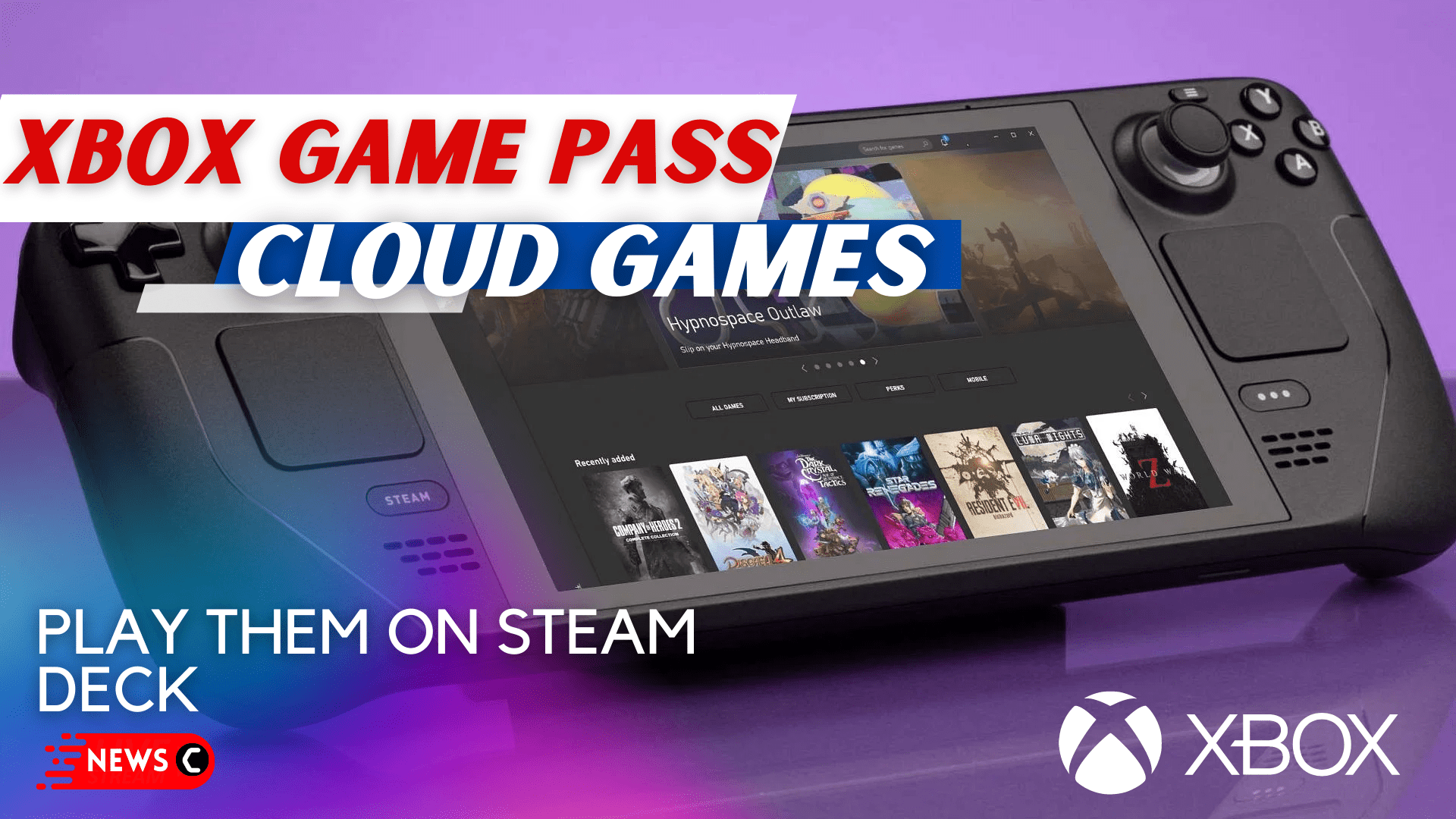

How To Play Xbox And PC Game Pass Games On Steam Deck Dexerto Steam Deck Game Pass 2 . How To Farm Each Currency In Skate Gamers Unchained Steam Deck Over A Green Glowing Background . Xbox Game Pass En Tu Steam Deck La Gu A Definitiva CityGame Game Pass Steam Deck 1536x768 . Xbox Game Pass Cloud Games On Steam Deck 2026 Enjoy How To Play Xbox Game Pass Cloud Games On Steam Deck . How To Play Game Pass Games On The Steam Deck Rock Paper Shotgun Game Pass On Steam Deck Header Academy

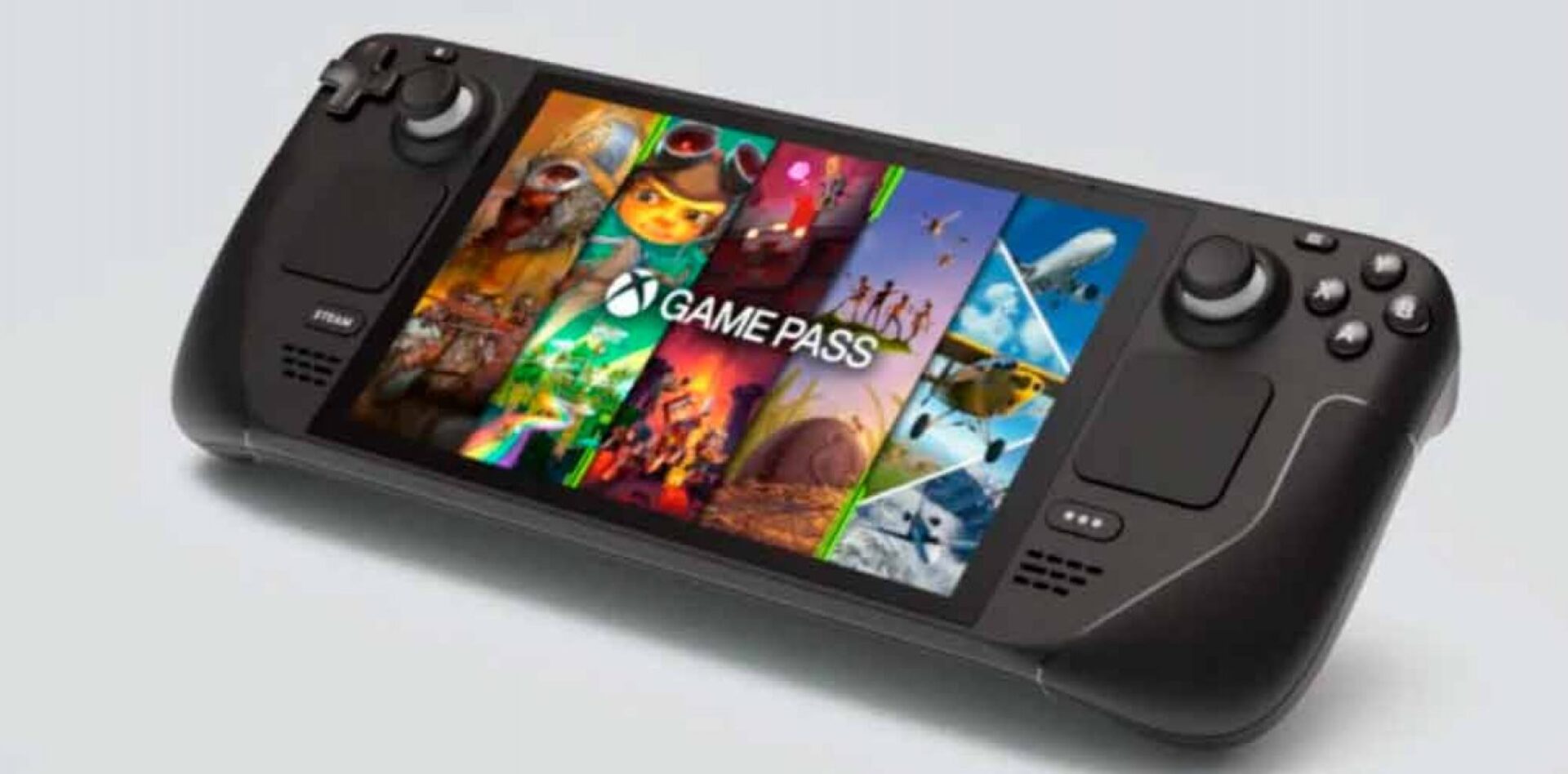
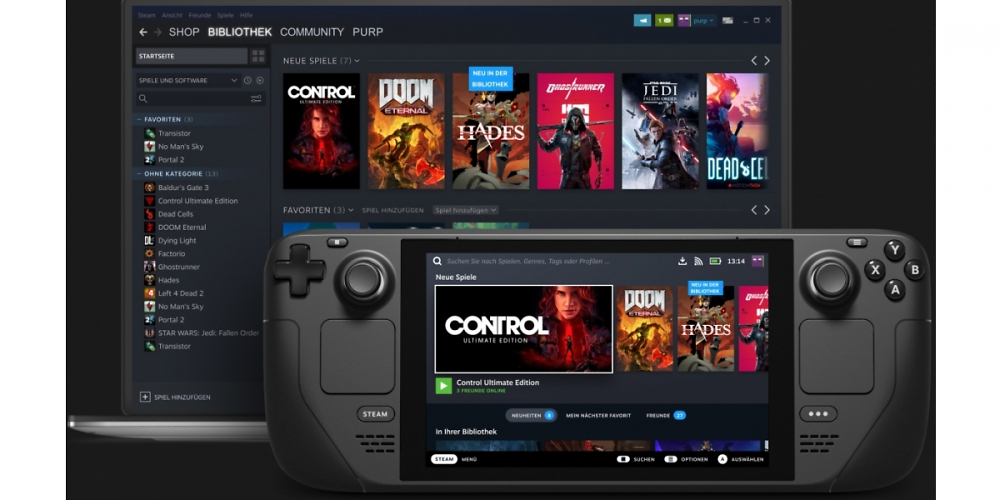

Game Pass En Steam Deck YouTube . Valve Quiere Facilitar El Acceso De Game Pass A Steam Deck Generacion Steam Deck Pc Game Pass Generacion Xbox 1 . Steam Deck Kommt Bald Der PC Game Pass Zu Steam Steam Deck PCGAMES Overview Shared Library German Pc Games B2article Artwork . Pentiment Steam Deck PC Game Pass Windows 11 Dual Boot YouTube . How To Play Xbox And PC Game Pass Games On Steam Deck Dexerto Steam Deck Game Pass


Steam Deck C Mo Jugar Al Game Pass De PC F Cil Y R Pido Steam Deck 500 333 . How To Get Xbox Game Pass On Steam Deck PC Guide How To Get Xbox Game Pass On Steam Deck . Valve May Release Steam Deck 2 After 2026 News Minimalist . C Mo Jugar A Xbox Game Pass En Steam Deck Gu A Paso A Paso Steamdeck Gamepass . Xbox Game Pass On Steam Online Steam Deck Game Pass
Steam Deck Xbox Game Pass Streaming Online Cheap Ids Deutschland De 3975850 3969489 Steamdeck . Nvidia And Xbox Have Turned Steam Deck Into A Game Pass Beast VG247 Steam Deck Game Pass . Valve Steam Deck Xbox Game Pass At Liam Berrick Blog Game Pass Logo Screen On A Steam Deck . The Xbox Handheld Already Exists Sort Of Why Steam Deck Desperately . How To Get Xbox Game Pass On Steam Deck Steam Deck On Desk 1600x900 .webp

Xbox Pc Games On Steam Deck At Herlinda Means Blog . Xbox Game Pass Cloud Games On Steam Deck 2026 Enjoy Xbox Game Pass On Steam Deck . Steam Deck Limited Edition Xbox Game Pass Steam Deck . Steam Deck KnowTechie Xbox Game Pass Steam Deck 400x240 .webp. Winux 11 Linux Imitiert Windows 11 Bis Ins Kleinste Steam Deck Hero Header.webp

DiabloLike Games On Steam Deck Steam Deck Oled Review Featured . Day One Xbox Game Pass Game Confirmed For November 26 Steam Deck . Steam Deck Maker Valve To Sets New Console Gaming News Roundup Valve Steam Machine . Xbox Game Pass On The Steam Deck Using XCloud Pi My Life Up Steam Deck Xbox Game Pass Using Cloud Gaming Thumbnail NoWM . Xbox Game Pass Reveals January Additions Including Star Wars Outlaws Xbox Game Pass January 2026.webp
Xbox Game Pass On Steam Deck Reddit H Ng D N Chi Ti T Cho Game Th . Best Non Steam For The Steam Deck Xbox Game Pass Steam Deck . It S About Time Steam Deck Gets Native Game Pass Support Game Pass And Steam Deck Can Make A Killer Combo . Steam Deck E Game Pass Come Installarlo Per Giocare SpazioGames Steam Deck Game Pass 51404 . How To Get Xbox Game Pass On Steam Deck 2024 How To Get Xbox Game Pass On Steam Deck 2024