Many gamers wonder how to download Roblox directly for Chrome. This detailed guide clarifies the process explaining why a direct Chrome extension isnt the primary way to access the popular gaming platform. Instead you will learn how to properly install the Roblox Player application for seamless gameplay on your Windows computer which pairs perfectly with browser-based account management. Discover the essential steps system requirements and expert tips to ensure a smooth and enjoyable Roblox experience on your PC optimized for Chrome users. This informational resource helps you get started fast and efficiently with the beloved online universe.
Hey there, fellow Roblox explorer! Have you ever wondered about the nitty-gritty of getting Roblox to play nice with your computer, especially if you're a Chrome user? Well, you've landed in the perfect spot! This isn't just any old FAQ; this is the ultimate, living guide, constantly updated for the latest patches and user experiences, designed to answer every question you might throw at it. We’re diving deep into all the common curiosities, from basic setup to those pesky bugs, and even some pro tips to truly elevate your gameplay. Get ready to conquer the Roblox metaverse with confidence!
Most Asked Questions about Roblox Download for Chrome
What is the official way to play Roblox games on a Windows PC with Chrome?
The official method involves downloading the dedicated Roblox Player application for your PC. While you use Chrome to browse games on Roblox.com, clicking "Play" prompts the installation and launch of this separate client. It ensures optimal performance and security, as full 3D games don't run directly within your browser tab. Always download from the official Roblox website.
Is there a Roblox Chrome extension that allows direct gameplay?
No, there isn't an official Chrome extension that enables direct gameplay of Roblox within the browser. Any extensions you find are typically third-party tools that enhance the Roblox website experience (e.g., trade helpers, UI tweaks) but do not replace the need for the standalone Roblox Player application. Exercise caution with unofficial extensions.
How do I download and install the Roblox Player application?
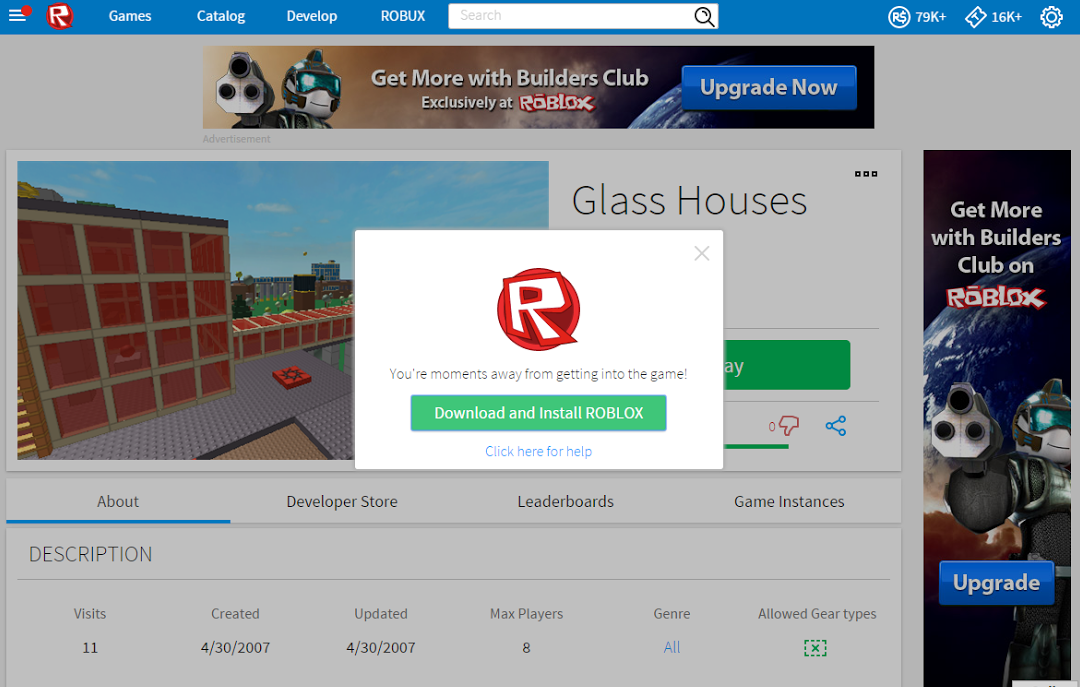
To download and install the Roblox Player, visit Roblox.com in your Chrome browser, log in, and click the green "Play" button on any game. The website will automatically detect if the player is installed; if not, it will prompt you to download and run the installer. Follow the on-screen instructions to complete the quick installation process.
Why isn't my Roblox game launching after I click the Play button?
If your Roblox game isn't launching, first ensure the Roblox Player is installed. Try restarting Chrome and your computer. Clear your browser's cache, verify a stable internet connection, and check if your firewall or antivirus is blocking the application. Reinstalling Roblox from the official site often resolves persistent launch issues efficiently.
What are the minimum system requirements to play Roblox on a PC?
Roblox is relatively lightweight. You generally need Windows 7 or newer, a processor from 2005 or newer (1.6 GHz+), 1 GB of RAM, a DirectX 9 compatible graphics card, and at least 20 MB of free disk space. Meeting these ensures basic functionality, though better specifications provide a smoother, more enjoyable experience.
Can I optimize Roblox performance if my PC is struggling with lag?
Yes, you can optimize performance. Lower in-game graphics settings via the ESC menu. Close unnecessary background applications and browser tabs to free up resources. Ensure your internet connection is stable, preferably wired. Regularly update your graphics drivers for the best compatibility and efficiency. These steps significantly reduce lag.
Beginner Questions - Getting Started
What is Roblox and how popular is it right now?
Roblox is an immensely popular online platform and game creation system where users can program games and play games created by other users. It's a massive global phenomenon, especially among younger demographics, with millions of daily active users. Its popularity continues to surge, offering a vast metaverse of diverse experiences from RPGs to simulators, all generated by its creative community. It's truly a digital playground.
Is Roblox free to play, or do I need to pay to download it?
Roblox itself is completely free to download and free to play. You don't need to pay anything to create an account, download the Roblox Player application, or jump into countless games. However, there's an in-game currency called Robux, which can be purchased with real money. Robux allows you to buy virtual items, accessories, or game passes within specific games, enhancing your experience but not required to play.
Multiplayer Issues - Connecting with Friends
Why can't I join my friend's game on Roblox?
If you're struggling to join a friend's game, several factors could be at play. First, ensure you're both on the same Roblox server region, though this is usually handled automatically. Check if your friend's game is set to "private" or if the server is full. Sometimes, a simple restart of both your Roblox Player and Chrome browser can clear up connection glitches. Make sure your internet connection is stable and that neither of you has an outdated Roblox client. Finally, always verify you've correctly added each other as friends on the platform.
Bugs & Fixes - Common Problems Solved
Roblox keeps crashing during gameplay. What's wrong?
Game crashes are super frustrating, but often point to common issues. First, ensure your PC meets the minimum system requirements. Outdated graphics drivers are a frequent culprit, so update them. Overheating can also cause crashes; check your computer's fan and ventilation. Try lowering your in-game graphics settings. If all else fails, a clean reinstallation of the Roblox Player application can resolve corrupted files. Don't forget to check your internet stability too.
My avatar isn't loading correctly or looks glitched in games.
Avatar glitches can break immersion! This usually indicates a problem with asset loading. First, check your internet connection; a slow connection can prevent cosmetic items from loading fully. Clear your Roblox cache (found in AppData folder for Windows) and browser cache to remove potentially corrupted temporary files. Sometimes, specific accessories or clothing items might be bugged; try changing your avatar's outfit to see if a particular item is causing the issue. A simple restart of the game or your computer often helps too.
Tips & Tricks - Elevate Your Gameplay
What are some quick tips for better performance in Roblox games?
To boost performance, always prioritize a stable internet connection; wired is best. Lower your in-game graphics quality settings if you experience frame drops – you can usually find this in the game's settings menu (often accessed by pressing ESC). Close any unnecessary background applications that consume RAM or CPU resources. Keep your graphics drivers updated, and consider a quick computer restart before long gaming sessions to clear memory. These simple tweaks can make a significant difference in smoothness.
How can I find the best games to play on Roblox without endless searching?
Finding awesome games efficiently is key! Start by exploring the "Recommended" and "Popular" sections on the Roblox website; these often feature high-quality, trending experiences. Look for games with high "Likes" percentages and many active players, which usually indicates quality. Follow popular Roblox content creators on YouTube or Twitch, as they often showcase hidden gems. Check out the "Top Earning" category for games that are proving incredibly engaging. Utilize genre filters to narrow down your search to your preferred playstyles. The Roblox editorial picks are also great for curated suggestions.
Still have questions? Check out our other popular guides like "Mastering Roblox Studio: A Beginner's Guide" or "The Ultimate Roblox Robux Management Handbook"!
Ever wondered "Can I actually download Roblox for Chrome and jump right into the action?" You are not alone; many players often ask this exact question hoping for a simple browser extension or a direct download. The truth is a little different but just as easy to understand once you know the official path to playing Roblox on your computer. Lets unravel this common query together and get you ready for countless adventures.
Think of your Chrome browser as the control center for your Roblox journey a place where you manage your account discover new games and interact with the community. However to truly step into the immersive 3D worlds of Roblox you will need the dedicated Roblox Player application installed on your PC. This specialized application is designed to deliver the best gaming performance and experience directly on your system. It works hand-in-hand with your Chrome browser ensuring a smooth transition from game discovery to actual gameplay.
Understanding How Roblox Works with Your Browser
Many people search for a "Roblox Player app" directly downloadable from the Chrome Web Store but thats not how it works. The Roblox platform intelligently separates its web interface from its game engine. Your Chrome browser acts as the gateway letting you browse millions of games update your profile and chat with friends online. This distinction is important for understanding the official installation process for playing Roblox.
The core reason for this separation is performance and security. Running complex 3D games directly within a web browser tab can be resource-intensive and limit graphical fidelity. The dedicated Roblox Player application leverages your computers hardware much more efficiently providing a smoother and more stable gaming environment. This ensures you get the best experience possible when exploring the vast metaverse.
Is There a Chrome Extension for Roblox
A common search query is for a "Chrome extension for Roblox" that allows direct play. While there are many third-party browser extensions designed to enhance your Roblox experience they do not enable direct gameplay within Chrome itself. These extensions might offer features like trade calculators item checkers or aesthetic changes but they are not the game client. You still need the official Roblox Player to actually load and play games.
These extensions are purely supplementary tools and should always be downloaded with caution from trusted sources. Always verify reviews and permissions before installing any browser extension. They exist to improve your Roblox journey in specific ways not to replace the essential game application itself. It is important to know the difference to avoid installing anything unverified.
Step-by-Step Guide to Installing Roblox for PC Chrome Users
Getting Roblox up and running on your Windows PC for use with Chrome is straightforward. This guide will walk you through each necessary step ensuring a hassle-free installation process. Follow these instructions carefully to begin your gaming adventure without any hitches. You will be playing your favorite experiences in no time at all.
Before You Begin Roblox System Requirements
Before initiating any download it is crucial to check the "Roblox system requirements" for your computer. This ensures your PC can handle the game efficiently and provide a good experience. Roblox is generally not very demanding but meeting the minimum specifications is vital for smooth gameplay. Verifying these specs prevents frustration and potential performance issues.
- Operating System: Windows 7 8 8.1 10 or 11.
- Processor: A processor from 2005 or newer with a clock speed of 1.6 GHz or better.
- Memory: 1 GB of RAM.
- Graphics Card: DirectX 9 compatible graphics card with Shader Model 2.0.
- Storage: At least 20 MB of free disk space.
Meeting these requirements will help ensure that Roblox runs smoothly on your machine. Keep in mind that better specs will generally lead to a more enjoyable and lag-free experience. If your computer is older you might still be able to play but with reduced visual quality or occasional slowdowns.
Downloading the Roblox Player Application
This is where the actual "Roblox download for Chrome" journey begins. While you navigate with Chrome the download itself is for your PC. Open your Chrome browser and head to the official Roblox website. This is the only safe and legitimate place to get the installer for the game. Avoid third-party sites which might offer outdated or malicious versions.
Once on the Roblox website sign in to your account. If you do not have an account yet it is quick and free to create one. After logging in find any game you wish to play and click the green Play button. The website will then prompt you to download and install the Roblox Player application automatically. This streamlined process makes it incredibly simple to get started.
Follow the on-screen instructions during the installation. The installer is small and quick to download and run. After the installation is complete the game should launch automatically. The next time you want to play just click a game on the Roblox website in Chrome and the Roblox Player will launch it for you. It truly is that simple to integrate your browser with the game client.
Optimizing Your Roblox Experience and Troubleshooting
To ensure you have the best possible gaming experience it is important to understand "Roblox browser compatibility" and how to optimize performance. While Roblox relies on its dedicated player application your Chrome browser still plays a role. Keeping Chrome updated and managing its settings can indirectly benefit your Roblox sessions. A well-maintained browser ecosystem contributes to overall system health.
Optimizing Roblox Performance
For smooth gameplay and to prevent lag especially in larger games consider a few tips for "optimizing Roblox performance". While the game client does most of the heavy lifting your computers overall state matters. Closing unnecessary browser tabs and background applications can free up valuable system resources. This makes a noticeable difference in game responsiveness.
- Update Graphics Drivers: Ensure your graphics card drivers are always up to date for better performance.
- Adjust In-Game Graphics: Within Roblox settings lower the graphics quality if you experience lag.
- Close Background Apps: Shut down other programs that consume CPU or RAM while playing.
- Check Internet Connection: A stable and fast internet connection is crucial for online games.
These simple adjustments can significantly improve your gaming experience especially if you are playing on an older machine. Regularly maintaining your system can also prevent many common issues. Dont forget to periodically clear your browser cache as well even if it is not directly related to the Roblox Player performance.
Common Troubleshooting Tips for Roblox on PC
Sometimes you might encounter issues even with a proper installation. Dont worry most problems are easily fixable. If Roblox is not launching after clicking play in Chrome or if you experience crashes there are standard troubleshooting steps. These steps can resolve many common glitches and get you back into the game quickly and efficiently.
- Restart Your Computer: A classic but effective solution for many software issues.
- Reinstall Roblox: If problems persist uninstall the player and download it again from the official site.
- Check Firewall/Antivirus: Ensure Roblox is not being blocked by your security software.
- Clear Browser Cache: While not directly for the player clearing Chrome's cache can resolve website interaction issues.
If you are still stuck the Roblox Support page is an excellent resource with detailed articles and a community forum. Remember you are not alone in facing these challenges and many solutions are readily available. Patience and systematic troubleshooting will usually lead to a resolution allowing you to enjoy your gaming.
Player Q&A Your Most Burning Roblox Questions Answered
Welcome to the ultimate Q&A section for getting Roblox up and running on your computer especially for those who primarily use Chrome! I get why this whole process can seem a little murky at first but don't sweat it we're going to break down every common question. We've compiled the most frequently asked questions from new and seasoned players alike covering everything from basic setup to optimizing your in-game experience. You've got this!
## Beginner / Core Concepts1. Q: Can I really play Roblox directly in my Chrome browser without downloading anything?
A: I get why this confuses so many people but unfortunately, no, you can't play Roblox games directly inside your Chrome browser like a simple webpage. Roblox games are complex 3D environments that require a dedicated application, the Roblox Player, to run smoothly and efficiently on your computer. Your Chrome browser acts as the portal where you find games, manage your account, and chat, but when you hit that "Play" button, it launches the separate Roblox Player app. This design ensures better performance and a richer gaming experience. Think of it like a remote control for your game console. You use the remote (Chrome) to pick the game, but the console (Roblox Player) does the actual playing. You've got this!
2. Q: Where is the official and safest place to download the Roblox Player for my PC?
A: This one used to trip me up too, trying to find the "right" download button! The official and by far safest place to download the Roblox Player is always directly from the official Roblox website, Roblox.com. You simply log into your account, browse to any game you want to play, and when you click the big green "Play" button, the website will automatically prompt you to download the installer if it's not already on your computer. This ensures you're getting the legitimate, most up-to-date version, free from any pesky malware or unwanted software that can sometimes lurk on unofficial download sites. Stick to the source, and you'll be golden!
3. Q: Do I need a powerful gaming PC to download and play Roblox successfully?
A: That's a super common concern, especially with all the amazing games out there nowadays! Thankfully, Roblox is designed to be quite accessible, meaning you don't typically need a super high-end gaming rig to get started. Its system requirements are fairly modest, often running well on computers that are several years old. You'll want a decent internet connection, and at least Windows 7 or newer, along with 1GB of RAM and a basic DirectX 9 compatible graphics card. While a beefier PC will naturally offer smoother, higher-fidelity experiences, most modern laptops and desktops can run Roblox perfectly fine. You might just need to adjust the in-game graphics settings down a bit if your machine is on the older side. Give it a try, you might be surprised!
4. Q: What exactly does the Chrome browser do if I can't play Roblox directly in it?
A: Great question, it's all about roles! Your Chrome browser is actually super important, even if it's not running the game itself. It acts as your primary interface for the entire Roblox platform outside of actual gameplay. Think of it as your personal Roblox hub. You use Chrome to:
- Browse and discover millions of user-created games.
- Manage your Roblox account, including your profile, friends, and Robux balance.
- Customize your avatar with new outfits and accessories.
- Chat with friends and join groups.
- Access the Roblox Studio if you're into game development.
## Intermediate / Practical & Production
1. Q: My Roblox game isn't launching after I click "Play" in Chrome. What should I do first?
A: Ugh, that's frustrating, I totally get it! When Roblox doesn't launch after you hit play, it's usually a quick fix. First, make sure you've actually downloaded and installed the Roblox Player application previously. If it's your first time, the website should prompt you. If it's already installed, try these quick steps:
- Restart Chrome and your computer: A good old reboot often clears out temporary glitches.
- Clear your browser cache: Sometimes old browser data interferes with the launch command. Go to Chrome settings > Privacy and security > Clear browsing data.
- Check your internet connection: An unstable connection can prevent the game from initiating.
- Look for the "Roblox Player" icon on your desktop: If it's there, try launching it directly and then logging in through the app.
2. Q: How do I update Roblox when a new version or patch is released?
A: A: This is awesome because Roblox usually handles updates super smoothly! You typically don't need to manually download new versions. When you launch a Roblox game from your Chrome browser, the Roblox Player application automatically checks for updates. If a new version is available, it will download and install it in the background before the game starts. This usually happens very quickly and without any intervention from you. So, as long as you're regularly playing games, you're pretty much always on the latest version. If you ever suspect you're on an outdated client, simply launching a game from Roblox.com will trigger the update process. Easy peasy!
3. Q: Are there any Chrome extensions that genuinely enhance my Roblox gameplay experience?
A: Yes, there are some great Chrome extensions that can definitely enhance your Roblox *experience*, though remember they won't let you *play* the game in the browser. Extensions like "RoPro" or "BTRoblox" offer a ton of quality-of-life improvements. They might add features like:
- Better trade interfaces and item details.
- Improved profile customization options.
- Enhanced game page information (like server population stats).
- Custom themes and UI tweaks for the Roblox website.
4. Q: What should I do if Roblox is lagging or performing poorly on my computer?
A: Lag is the absolute worst, I've been there! If Roblox feels sluggish, here's your troubleshooting playbook. First, lower your in-game graphics settings. You can do this by hitting ESC during gameplay and adjusting the "Graphics Mode" and "Graphics Quality" sliders. Next, close any other programs or browser tabs running in the background, especially those that consume a lot of RAM or CPU. Make sure your internet connection is stable; Wi-Fi can sometimes be less reliable than a wired connection. Finally, ensure your graphics drivers are up to date. You can usually find updates on your graphics card manufacturer's website (NVIDIA, AMD, Intel). These steps usually make a big difference!
5. Q: Can I use an Xbox or PlayStation controller to play Roblox games downloaded for PC?
A: This is a fantastic question for immersive gaming! Absolutely, many Roblox games on PC do support controllers, including Xbox and PlayStation gamepads. The support largely depends on whether the specific game's developer has implemented controller controls. Roblox itself provides a framework for developers to add controller support, so while the Roblox Player application is compatible with controllers, the individual game you're playing might not fully utilize it. Typically, you'll just need to connect your controller to your PC via USB or Bluetooth before launching the game. If the game supports it, it should just work! Experiment with your favorite games to see which ones offer the best controller experience.
6. Q: How do I ensure my Roblox account is secure, especially when playing on PC?
A: Keeping your account safe is paramount, I can't stress this enough! The best defense is always a strong offense. Here's how to lock down your Roblox account:
- Enable 2-Step Verification (2SV): This is a must-have! It adds an extra layer of security, requiring a code from your email every time you log in from a new device.
- Use a strong, unique password: Don't reuse passwords from other sites.
- Be wary of phishing links: Never click suspicious links asking for your Roblox login details.
- Don't share your password: Roblox staff will never ask for your password.
- Review your account settings regularly: Check for any unrecognized activity.
## Advanced / Research & Frontier
1. Q: What are the best practices for optimizing my internet connection specifically for Roblox multiplayer games?
A: Ah, the dreaded lag in multiplayer, it's the bane of every gamer's existence! For Roblox, just like any online game, a stable and fast internet connection is key. Here's how to really nail it:
- Wired Connection (Ethernet): If at all possible, ditch Wi-Fi and connect your PC directly to your router with an Ethernet cable. This provides the most stable and fastest connection, minimizing ping and packet loss.
- Prioritize Gaming Traffic (QoS): Many modern routers have Quality of Service (QoS) settings. You can configure these to give priority to your gaming PC's traffic, ensuring Roblox gets the bandwidth it needs, even if others are streaming.
- Minimize Network Congestion: Ask others on your network to pause large downloads or streaming during your gaming sessions.
- Check your Ping: Use online speed tests to check your ping to various servers. Lower ping means less delay.
2. Q: How does Roblox handle user-generated content and ensure its safety for all players, especially on PC?
A: This is a super important question, especially for a platform built on user-generated content! Roblox has a robust and multi-layered approach to content moderation to ensure safety. They combine:
- Automated Filters: Sophisticated AI systems scan all text, images, and audio uploaded to the platform for inappropriate content, explicit language, and personal information.
- Human Moderation Teams: A large team of human moderators reviews flagged content and investigates reports from players. They provide nuanced judgment that AI can't always.
- Community Reporting: Players can easily report inappropriate content or behavior directly within games and on the website, feeding into the moderation system.
- Age-Appropriate Experiences: Roblox encourages developers to categorize their games by age-appropriateness, and parental controls allow parents to filter content.
3. Q: What are the technical differences between playing Roblox on a powerful desktop PC versus a mid-range laptop?
A: That's a deep dive into hardware, and it absolutely impacts your experience! The main differences come down to the CPU, GPU, and RAM. A powerful desktop PC typically boasts:
- Superior CPU: Faster processing means quicker game loading, smoother physics, and handling more complex in-game scripts.
- Dedicated GPU: A desktop graphics card (like an NVIDIA RTX or AMD Radeon RX) can render much higher frame rates, complex textures, and advanced lighting effects, allowing you to play Roblox with maximum graphics settings.
- More RAM: More memory prevents stuttering when many assets are loaded.
4. Q: How can I get involved in creating my own games on Roblox Studio on a PC?
A: This is where the real magic happens, I love that you're asking about game creation! Getting started with Roblox Studio on your PC is surprisingly accessible.
- Download Roblox Studio: Just like the Roblox Player, you download Roblox Studio from the official Roblox website. It's a separate application, a powerful development environment.
- Learn the Basics: Roblox offers extensive free tutorials on their developer hub (create.roblox.com). Start with the absolute basics of building, scripting (using Lua, a beginner-friendly language), and UI design.
- Experiment: Don't be afraid to just open Studio and start dragging, dropping, and trying things out. The community is huge and very supportive.
- Join Developer Forums: Engage with other creators, ask questions, and share your progress.
5. Q: What security considerations should I keep in mind when connecting my Roblox account to third-party services or extensions?
A: This is a crucial advanced question because third-party interactions are where many security risks lurk. When you're thinking about connecting your Roblox account to anything outside the official Roblox ecosystem, here's your mantra: *extreme caution*.
- OAuth vs. Direct Login: Prefer services that use "OAuth" (where Roblox asks you to approve the connection) over those that ask for your Roblox username and password directly. Giving away your login credentials is a massive security risk.
- Check Permissions: Understand exactly what data an extension or service is asking to access. Does it need to know your friends list? Your inventory? Only grant necessary permissions.
- Reputation Research: Always research the reputation of the third-party service or extension. Look for reviews, forum discussions, and official developer information. If it looks sketchy, it probably is.
- Phishing Scams: Be super wary of any site claiming to offer free Robux or exclusive items in exchange for your login. These are almost always scams.
## Quick Human-Friendly Cheat-Sheet for This Topic
- No Direct Chrome Play: Remember, you can't play Roblox games right in your browser. Think of Chrome as your game lobby and the Roblox Player app as the actual game console.
- Official Download Only: Always get the Roblox Player from Roblox.com. It's the safest and most reliable way to install the game on your PC.
- Click Play to Install/Update: When you click the "Play" button on any game on the Roblox website, it automatically handles the download, installation, and updates of the Roblox Player. Super handy!
- Check Your Specs: While Roblox isn't super demanding, a quick check of your PC's system requirements can save you from laggy gameplay later.
- Optimize for Smoothness: If things feel slow, try lowering in-game graphics, closing other apps, and ensuring your internet connection is stable.
- Extensions Enhance, Don't Play: Chrome extensions can add cool features to the Roblox *website*, but they don't let you bypass the Roblox Player app for actual gaming. Use them wisely!
- Security First: Enable 2-Step Verification on your Roblox account. It's your best friend against hackers.
Roblox does not have a direct Chrome browser download or extension for gameplay. You need to download the official Roblox Player application for PC. Managing your Roblox account and finding games is done through your web browser including Chrome. Ensure your system meets the minimum Roblox requirements for optimal performance. Always download Roblox from the official website to avoid security risks and ensure legitimate software.
35

How To Get Roblox On Chrome Robots Net How To Download Roblox On A Chromebook 1694170395 . How To Download Roblox On Chrome OS Without Google Play Robots Net How To Download Roblox On Chromebook 1696019816 . How To Download Roblox On Chromebook Robots Net How To Download Roblox On Chromeos 1695972604 . How To Download Roblox On Chromebook 2026 Full Guide YouTube . Best Roblox Chrome Extensions 2025 Guide YouTube

How To Play Roblox On CHROMEBOOK WORKING YouTube . How To Get Roblox On Chrome Robots Net How To Download Roblox On Chromebook Without Play Store 1695453895 . How To Play Roblox On Google Chrome Playbite How To Play Roblox On Google Chrome . Gaming Guide How To Play Roblox On Chromebook 2026 Install Roblox From Chromebook Play Store . Calendar Club Definite Guide To Roblox 2026 Annual 1200x1769

How To Download Roblox On A School Chromebook Robots Net How To Download Roblox On Chrome Os Without Google Play 1695607718 . How To Play Roblox On A Chromebook Step By Step Alvaro Trigo S Blog Unnamed File 8 1024x511 . How To Play Roblox On Chromebook 1cc16 1920 . How To Download Roblox On A Chromebook Robots Net How To Make Roblox Less Laggy On Chromebook 1694545367 . How To Play Roblox On A Chromebook Step By Step Roblox Apk
How To Install And Play Roblox Using Browser Roblox Support Unname . How To Install Roblox On Chromebook 2022 YouTube . How To Play Roblox On Your Chromebook Roblox Chromebook 2023 Screen 01 Wm.JPG. Roblox For Google Chrome Extension Download Adsiz Tasarim 19 . How To Download Install And Play Roblox On Chromebook How To Download And Install Roblox On Chromebook


How To Download And Install Roblox On PC Prima Games Roblox Download . How To Download Roblox On Chrome OS Without Google Play Robots Net How To Download Roblox On A School Chromebook 1695453790 . How To Download Roblox On Dell Laptop Download Roblox Step 29 . How To Download Roblox On Chrome OS Without Google Play Robots Net How To Download Roblox On School Chromebook Without Google Play 1695570912 . How To Download Roblox On Chromebook Without Play Store Robots Net How To Play Roblox On A Chromebook 1706813892



How To Add People Roblox Easily Your 2026 Guide . Roblox APK Download For Android Aptoide Fgraphic . Roblox Download PC Official Guide To Install On Windows Fps Boost Roblox 1200x600 . How To Download Roblox On Any Device Easily In 2026 Image2 . Best Roblox Games To Play In 2026 Hidden Gems



What Will Roblox Look Like In 2026 Blog Graphics 26 . Roblox For Google Chrome Extension Download Roblox 9we Screenshot . Roblox Download Chrome Lsaclean . How To Download And Install Roblox On Windows PC Guide Rob . How To Play Roblox Online Through Chrome On Chromebook How To Play Roblox Online Through Chrome On Chromebook