Ever wonder where your Steam game icons actually live on your PC? You're not alone! Many gamers, juggling busy lives and limited time, often encounter frustrating moments trying to locate specific game icons, whether it's for creating custom desktop shortcuts, troubleshooting a missing icon, or simply exploring game files for modding. This comprehensive guide dives deep into the exact locations where Steam stores its game icons and associated files. We'll cover everything from the main installation directories to the hidden corners where Steam client shortcuts reside. Understanding these locations is crucial for maintaining an organized gaming library, optimizing your setup for quick access to your favorite titles, and even tackling common issues like broken shortcuts. This article provides clear, step-by-step instructions and practical tips designed for the average US gamer who values efficiency and a smooth experience, ensuring you spend more time playing and less time searching. Discover how to effortlessly manage your Steam game icons and streamline your gaming routine.
Related gamesWhere are Steam game icons physically stored?
Steam game icons aren't always individual image files you can easily browse. Desktop shortcuts often pull from Steam's internal cache or are embedded within the game's executable. The actual game files, which contain their intrinsic icons, are typically found in your Steam Library folder.
How do I create a desktop shortcut for a Steam game if it's missing?
To create a new desktop shortcut for a Steam game, open your Steam client, navigate to your Library, right-click on the desired game, select 'Manage', and then click 'Add Desktop Shortcut'. This is the most reliable way to generate a proper Steam-linked icon.
What's the default location for Steam game installation folders?
The default location for most Steam game installations is usually C:\Program Files (x86)\Steam\steamapps\common. Within this 'common' folder, you'll find individual directories for each of your installed games, containing their executable files and assets.
Can I customize the icons for my Steam games on the desktop?
Yes, you can customize desktop icons for your Steam games! After creating a desktop shortcut, right-click on it, select 'Properties', go to the 'Shortcut' tab, and click 'Change Icon'. You can then browse for any .ico file on your computer to personalize your shortcut's appearance.
Why do Steam game icons sometimes appear generic or broken?
Generic or broken Steam game icons usually indicate a corrupted Windows icon cache, a temporary Steam client glitch, or an issue with the shortcut itself. Restarting your PC, recreating the shortcut via Steam, or rebuilding your Windows icon cache are common fixes.
Is there a quick way to access a Steam game's local files directly?
Yes, there's a very quick way. In your Steam Library, right-click on the game you want to access, select 'Manage', and then click 'Browse local files'. This will immediately open the game's installation directory in File Explorer, saving you time from manual navigation.
How can I backup my Steam game icons or shortcuts?
You primarily back up the shortcuts themselves, not the individual icon files. Simply copy your desktop shortcuts to another folder or external drive. For more comprehensive backups of game data (including embedded icons), use Steam's built-in 'Backup and Restore Games' feature found under 'Steam' in the top-left menu of the client.
You just finished a long day, the kids are finally asleep, and you're eager to dive into that new cozy game everyone's talking about or unwind with a few rounds of your favorite online shooter. You click on your desktop shortcut, and poof, it's gone! Or maybe you're trying to find a specific game's icon to customize it, but you have no idea where Steam hides these digital treasures. If this sounds familiar, you're not alone. Balancing work, family, and gaming means every minute counts, and wrestling with missing or hard-to-find game icons is a pain point many US gamers, with an average age around 36, can relate to. It pulls you away from the relaxation, skill-building, or social interaction you crave. This guide is your ultimate roadmap to understanding exactly where Steam game icons are located, how to manage them efficiently, and troubleshoot common issues, so you can get back to what matters: playing.
In 2026, with 87% of US gamers playing regularly and many dedicating over 10 hours a week to gaming, optimizing your experience is more important than ever. Whether you're into the latest indie sensation, a competitive esports title, or exploring VR, a streamlined setup saves precious time. This article will demystify the Steam icon situation, offering practical, no-nonsense solutions that help you navigate your PC like a pro, ensuring your gaming sessions start seamlessly every time.
Where Are Steam Game Icons Physically Stored on My PC
Steam actually handles game icons in a couple of different ways. For the actual executable files of your games, their icons are embedded within the game's main .exe file, typically found in its installation directory. However, the desktop shortcuts or Start Menu entries you see often use a different system. Steam uses a caching mechanism for these, drawing from a central location to ensure consistency and quick access. Understanding this distinction is key to knowing where to look when you need to find, modify, or troubleshoot an icon.
Most commonly, the icons you interact with on your desktop or in your Start Menu are generated by Steam, not directly linked to a specific icon file within the game's folder. This design helps Steam manage your library effectively, especially with constant updates and new games. It's a smart system, but it can be confusing if you don't know where to start looking. Knowing the path to your Steam installation and user data is the first step to unlocking icon management.
How Do I Create a Desktop Shortcut for a Steam Game
Creating a desktop shortcut for your favorite Steam game is straightforward and can save you valuable time, especially when you're squeezing in a quick session. No more digging through your Steam library! The easiest method is directly through the Steam client itself. Simply open Steam, navigate to your Library, right-click on the game you want a shortcut for, and select 'Manage' then 'Add Desktop Shortcut'. This automatically places a functional shortcut on your desktop, ready for action.
Alternatively, if you prefer a more manual approach or want to create a shortcut to the game's actual executable (perhaps for advanced launch options or specific modding tools), you'll need to locate the game's installation folder. From there, find the primary executable (.exe) file, right-click it, and choose 'Send to' > 'Desktop (create shortcut)'. Remember that directly linking to the .exe might bypass some Steam features like overlay or playtime tracking, so the in-client method is generally recommended for most gamers.
What If My Steam Game Icon Is Missing or Broken
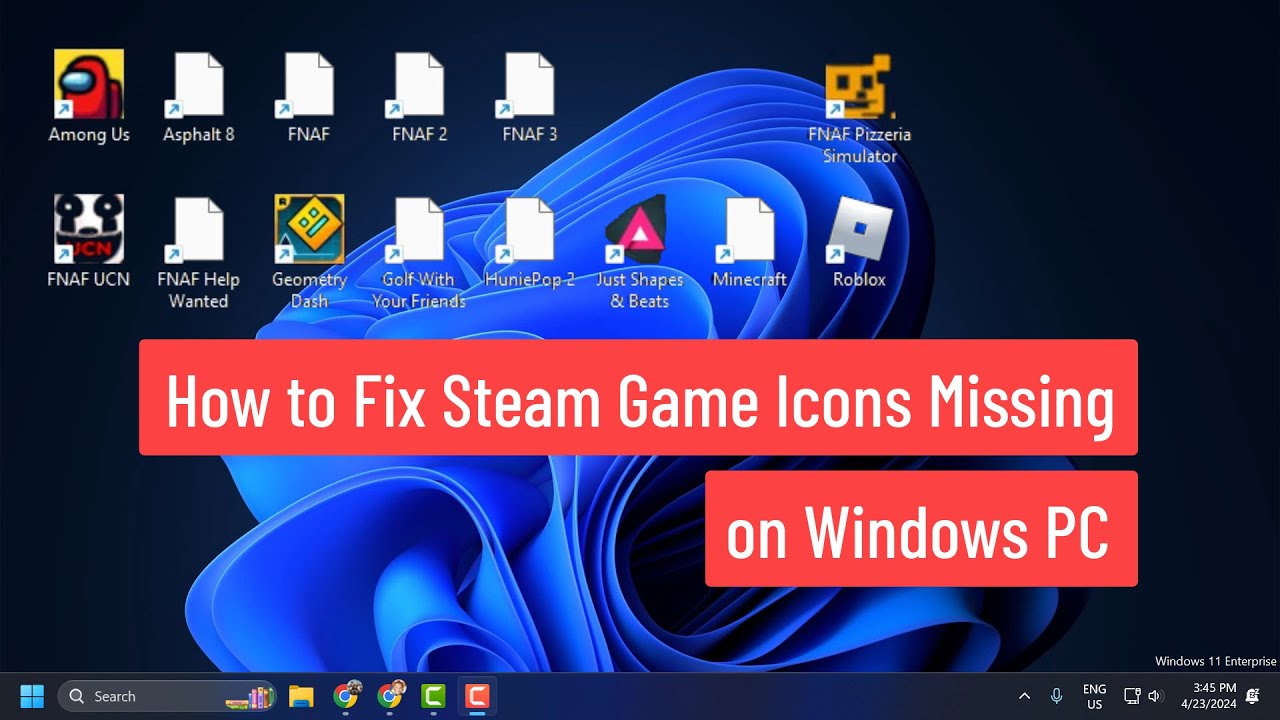
A missing or broken Steam game icon is a common annoyance, especially after system updates or a fresh install. It often appears as a generic blank icon or a broken file symbol, which can be frustrating when you're trying to launch a game quickly. The first step to fixing this is often the simplest: restart your computer. Sometimes, a quick reboot can refresh icon caches and resolve temporary glitches. If that doesn't work, try recreating the shortcut directly from Steam, as described in the previous section. This usually generates a fresh, working icon.
If the problem persists, it might indicate an issue with Steam's local files or your Windows icon cache. You can try verifying the integrity of the game files through Steam (right-click game in Library > 'Properties' > 'Installed Files' > 'Verify integrity of game files'). For persistent issues across multiple icons, consider rebuilding your Windows icon cache, a process that can be found with a quick search online and involves deleting a hidden file. This often resolves widespread icon display problems, giving you back your proper game images.
Can I Customize My Steam Game Icons for a Personalized Look
Absolutely! Many gamers love to personalize their setup, and custom game icons are a fantastic way to do it. While Steam itself doesn't offer a direct 'change icon' button for desktop shortcuts, Windows allows you to modify the icon of any shortcut. Once you've created a desktop shortcut for your Steam game, simply right-click it, select 'Properties', go to the 'Shortcut' tab, and click 'Change Icon'. Here, you can browse for a custom .ico file.
Finding or creating custom .ico files is the fun part. Websites like IconArchive or DeviantArt offer a vast selection of fan-made icons, or you can design your own using image editing software and converting them to .ico format. This personal touch not only makes your desktop look cooler but can also help you quickly identify games, especially if you have many titles that share similar default icons. Customization is a big part of the gaming experience for many, reflecting individual style and passion for a game.
Where Are Steam Game Files Located on My PC The Main Directory
Knowing where your Steam game files are stored is essential for more than just icons; it's crucial for modding, troubleshooting, backing up games, or managing disk space. By default, Steam installs games within its main installation directory, typically Locate Steam game icons, Create desktop shortcuts, Troubleshoot missing icons, Customize game icons, Understand Steam file structure, Access Steam game folders, Backup shortcuts efficiently. How Fix Steam Game Icons Missing 2026 Step By Step YouTube . Steam Guide How To Change Icon Size In Steam Library Beta Library . Where To Find Steam Game Icons Steam Game Icon 35 . 5 Game Steam Yang Patut Kamu Mainkan Di Bulan Januari 2026 . Steam Game Icons Portal F6fc4 1920 Steam Icons Are Missing Try This EASY FIX YouTube . Steam Next Fest 2026 And Beyond All The Dates Details And Everything. Steam Game User Statistics 2026 Icon Era Statistics Screenshot 2026 04 08 At 3.00.22 PM . Steam Sale 2026 Key Dates You Need To Know LevelUpTalk Steam Sale Schedule 2026 08 27 2025 7c35051e 2c22 4093 96f1. Steam Game Icon At Vectorified Com Collection Of Steam Game Icon Free Steam Game Icon 27 Indies At NG26 Get Noticed On Steam Nordic Game 2026 NG25 Steam. Sega Super Game Arriving In 2026 Steam Logo With Glowing Purple Outline Over Blurred Cyberpunk 2077 Night City Promo Screenshot . Steam Game Icons T M Hi U V C C Bi U T Ng C Tr Ng C A Steam Game When I Create Icons For My Steam Games Why Do Some Create V0 . Steam Game Icon At Vectorified Com Collection Of Steam Game Icon Free Steam Game Icon 22 . Steam Game Icon At Vectorified Com Collection Of Steam Game Icon Free Steam Game Icon 17 Fix Steam Game Icons Missing 4 Methods 2024 Tutorial YouTube . Steam Users Have 4 Free Games To Play For January 2026 Steam Logo Blue Background . Steam Game Icon At Vectorified Com Collection Of Steam Game Icon Free Steam Game Icon 19 . Steam Game Icon At Vectorified Com Collection Of Steam Game Icon Free Steam Game Icon 26 . Steam Starts 2026 With 4 New FREE Games No Strings Attached Image Psd 37 Steam Logo Png Steam Icon Transparent Png 20975557 PNG Steam Logo Steam Icon Transparent Free Png . How To Fix Steam Game Icon Missing Tutorial YouTube . Steam Tab Icon Steam . Steam Emojis Png Steam Circled . The Most Desired PC Game On Steam In February 2026 Has Been Named Join The Giveaway For 7 Exciting Steam Games Now LevelUpTalk Steam Games Giveaway 02 12 2026 5b45511f E627 4feb 9221. How To Fix Steam Game Icons Missing On Windows PC 2024 YouTube . Daftar Game Terbaik Di Steam Spring Sale 2026 Pesta Diskon Yang Tak Steam Team Logo In The Foreground With Various Images From Games In The Background 8cd1e886ab 1024x576 . Steam Game Icon At Vectorified Com Collection Of Steam Game Icon Free Steam Game Icon 28 . 10 Games From The February 2026 Steam Next Fest You Should Check Out SNF Feb 26 Feature Scaled Steam Desktop Icons Broken Sddefault . You Can Fill Your Steam Library With Animated Icons Now Steam Logo . Add Games To Steam Icons Steam Icons In Windows 11 Style For Graphic Dalv Dalv . Steam Game Logos Icons Download 3681 Free Steam Game Logos Icons Here Steam Icon . Steam Game Icon Desktop Icons Download 1224 Free Steam Game Icon Steam Icon C:\