Are you a dedicated gamer balancing work and life but struggling with Roblox Player not launching? This comprehensive guide is designed for busy US gamers who just want to unwind and play. We understand the frustration when your favorite platform glitches, preventing you from joining friends or exploring new worlds. This article dives deep into practical, step-by-step solutions to common Roblox launch issues, ensuring you spend less time troubleshooting and more time gaming. From simple cache clears to advanced firewall adjustments and system optimizations, we cover everything you need to get back into the game quickly. Discover proven methods that resolve the dreaded 'Roblox won't open' problem, tailored for both PC and mobile users seeking fast and effective fixes without the tech jargon. Get ready to reclaim your gaming sessions and jump back into the vibrant world of Roblox with confidence.
Q: How do I fix Roblox Player not launching on Windows 10/11?
A: The first step to fix Roblox Player not launching on Windows is often to ensure your internet connection is stable, then restart your computer. Next, clear your browser's cache and cookies, particularly if you're launching Roblox from a web page. Verify that your antivirus or firewall isn't blocking Roblox by temporarily disabling them or adding Roblox to their exception lists. If issues persist, try reinstalling Roblox after completely uninstalling it and deleting residual files from the AppData folder for a fresh start. Finally, ensure your graphics drivers and Windows OS are up to date.
Q: Why is my Roblox Player not opening after clicking Play?
A: If Roblox Player isn't opening after you click Play, it could be due to several reasons. Your internet might be unstable, preventing the game from connecting. Corrupted Roblox installation files are a common culprit, requiring a clean reinstallation. Browser extensions or settings can interfere with the launch process, so try a different browser or clear your current one's cache. Additionally, your antivirus or firewall software might be mistakenly identifying Roblox as a threat and blocking its execution, which can be resolved by creating an exception for Roblox or temporarily disabling the security software.
Q: What should I do if Roblox keeps crashing on launch?
A: If Roblox crashes immediately upon launching, focus on system-related solutions. Ensure your graphics drivers are fully updated to their latest versions, as outdated drivers are a frequent cause of game crashes. Run Roblox as an administrator to grant it necessary permissions. Check for any pending Windows updates, as an outdated operating system can lead to compatibility issues. If the problem persists, a complete reinstallation of Roblox, coupled with clearing all residual files, is highly recommended to eliminate any corrupted game data contributing to the crashes. Monitoring system resource usage during launch can also provide clues.
Q: How do I clear Roblox cache and temporary files?
A: Clearing Roblox cache and temporary files can often resolve launch issues by removing corrupted or outdated data. On Windows, press Windows Key + R, type '%temp%' and press Enter. Delete all files and folders related to Roblox you find there. Additionally, navigate to 'C:\Users\YourUsername\AppData\Local' and delete the 'Roblox' folder. On mobile, go to your device's app settings, find Roblox, and select 'Clear Cache' and 'Clear Data'. This process ensures Roblox starts with fresh data, often resolving performance and launching problems efficiently.
Q: Can my antivirus or firewall block Roblox from launching?
A: Yes, absolutely. Antivirus software and firewalls are designed to protect your system, but they can sometimes misidentify legitimate programs like Roblox as a threat, preventing them from launching. To fix this, first check your antivirus software's quarantine or blocked applications list to see if Roblox is listed. If it is, restore it and add Roblox to your antivirus's exception or whitelist. Similarly, go to your Windows Defender Firewall settings, or your third-party firewall, and create new inbound and outbound rules to allow 'RobloxPlayerBeta.exe' and 'RobloxStudioBeta.exe' access. Temporarily disabling them for a launch test can confirm if they are the cause.
Q: Is reinstalling Roblox the best way to fix launch problems?
A: Reinstalling Roblox is often one of the most effective solutions for persistent launch problems, especially when other troubleshooting steps have failed. A clean reinstallation ensures that all potentially corrupted game files are removed and replaced with fresh, working versions. However, it's crucial to perform a *complete* uninstallation. This means not just uninstalling via the Control Panel but also manually deleting any leftover Roblox files from your AppData directory. This thorough approach prevents old, problematic files from interfering with the new installation, giving Roblox a truly fresh start and significantly increasing the chances of resolving launch issues.
Q: What if Roblox won't launch and I've tried everything?
A: If you've diligently tried all common troubleshooting steps and Roblox still won't launch, it's time to consider more advanced solutions or seek direct support. First, check the official Roblox Status page or their social media channels for any server-wide outages or maintenance affecting the platform – sometimes the issue isn't on your end. If servers are fine, consider performing a Windows System Restore to a point before the issue began, if you have one. As a last resort, reach out to Roblox Support directly. Provide them with detailed information about your system, the steps you've already taken, and any error messages you've encountered. They can offer specific diagnostic tools or solutions tailored to your unique situation.
Hey there, fellow gamers! Ever been ready to jump into a new Roblox adventure, maybe catch up with some friends, only to find the Roblox Player refusing to launch? It's a classic gamer pain point, isn't it? You've had a long day, finally carved out some precious gaming time, and then BAM! The game won't even start. For US gamers, who often average over 10 hours a week and balance gaming with jobs and families, every moment counts. We value relaxation and social play, and when something like Roblox not launching gets in the way, it's incredibly frustrating.
You're not alone. In fact, setup and performance issues are common grievances across the gaming community, which, according to recent stats, sees 87% of US adults playing games regularly. Whether you're on a PC or using mobile (where gaming truly dominates these days), encountering a game that won't launch can derail your plans. But don't worry, you've come to the right place. This guide is packed with practical, no-nonsense solutions to help you fix Roblox Player not launching, getting you back into the action without the tech headache. We'll cover everything from the simplest checks to more in-depth system adjustments, all in a clear, easy-to-follow Q&A format. Let's get your Roblox experience back on track!
Why Is My Roblox Player Not Launching? Understanding the Common Culprits
The issue of Roblox Player not launching can stem from various sources, making it frustrating to pinpoint the exact problem. Often, it's not a single major fault but a combination of minor issues or outdated settings preventing the application from initializing correctly. These can range from network hiccups to corrupted game files or even conflicts with your system's security software. Understanding the potential causes is the first step in effective troubleshooting.
Common reasons include a slow or unstable internet connection, corrupted Roblox installation files, an outdated browser or operating system, interference from antivirus software or firewalls, or even a build-up of temporary game data. For many busy adult gamers, keeping every single system component perfectly optimized can be a challenge. This guide aims to simplify the diagnostic process, empowering you to tackle these issues head-on and quickly resolve why Roblox Player might not be launching on your device.
How Do I Perform Basic Checks When Roblox Won't Start?
Before diving into more complex solutions for Roblox Player not launching, it's crucial to rule out the simplest causes. These basic checks can often resolve the problem quickly, saving you time and effort. Many seasoned gamers know that sometimes the most obvious solution is the one that works.
- Check Your Internet Connection: A stable internet connection is fundamental for Roblox. If your connection is flaky, Roblox might struggle to download necessary updates or connect to servers. Try these steps:
- Restart your router and modem.
- Test your internet speed using an online tool.
- Ensure you're not experiencing a local outage.
- Restart Your PC or Mobile Device: The classic
Roblox not launching fix, Clear Roblox cache, Update drivers for Roblox, Check internet connection for Roblox, Disable antivirus for Roblox, Reinstall Roblox player, Firewall exceptions for Roblox, Run Roblox as administrator, Browser compatibility for Roblox, Troubleshooting Roblox launch issues.
35#1 Gallery how to fix roblox player not launching

How To Fix Roblox Not Launching Full Guide YouTube . How To Fix Roblox Not Launching Best Method Fix Roblox Not Loading . How To Fix Roblox Not Launching Fix Roblox Won T Open YouTube . How To Fix Roblox Not Launching Updated Guide YouTube . How To Fix Roblox App Game Player Not Launching Easy Quick Solution
#2 Gallery how to fix roblox player not launching


How To Fix Roblox Not Launching WHen You Press Play From Browser . Roblox Not Launching On Windows 10 11 How To Fix Roblox Player Not . How To Fix Roblox Not Launching 2026 Updated Guide YouTube . Fix Common Roblox Issues On Windows 10 How To Fix Roblox Not Launching . How To Fix Roblox Not Opening Or Launching In Windows 11 YouTube
#3 Gallery how to fix roblox player not launching


How To Fix Roblox Not Launching 2025 Pc Laptop YouTube . Roblox NOT Launching In Windows 11 How To FIX This Problem YouTube . How To Fix ROBLOX Not Launching 2024 Roblox Not Opening FIX YouTube . Roblox Not Working On Windows 11 Lets Fix It . Roblox Not Launching Windows 11 10 Causes Essential Fixes Roblox Not Launching 2
#4 Gallery how to fix roblox player not launching


How To Fix Roblox NOT Installing Launching 2024 YouTube . How To Fix Roblox Not Launching Opening In Roblox 2025 Tutorial YouTube . FIX Roblox Not Launching Updated 2026 Guide PC YouTube . How To Fix Roblox Not Launching 8 Quick Fixes V4 460px Fix Roblox Not Launching Step 1 . Fix Roblox Not Launching On PC Laptop 2025 Roblox Not Opening YouTube
#5 Gallery how to fix roblox player not launching


Roblox Not Working Right How To Fix Common Issues How To Fix Roblox Client Is Not Responding Tutorial . How To Fix Roblox Game Client Is Not Responding 2023 YouTube . How To Fix Roblox Not Launching 8 Quick Fixes V4 460px Fix Roblox Not Launching Step 18 . How To Fix Roblox Launcher Not Responding After Clicking Play YouTube . Why Is Roblox Not Working June 2026 24 Fixes That Actually Work Why Is Roblox Not Working 2025 24 Fixes That Actually Work
#6 Gallery how to fix roblox player not launching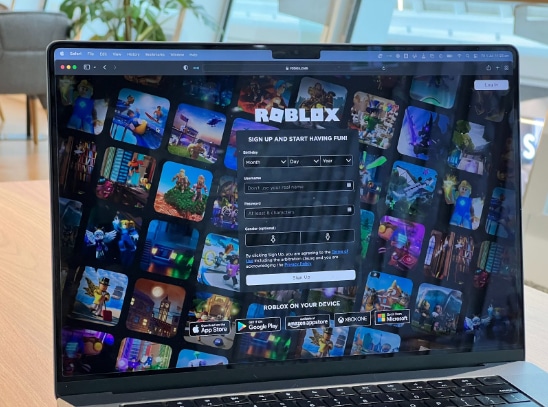
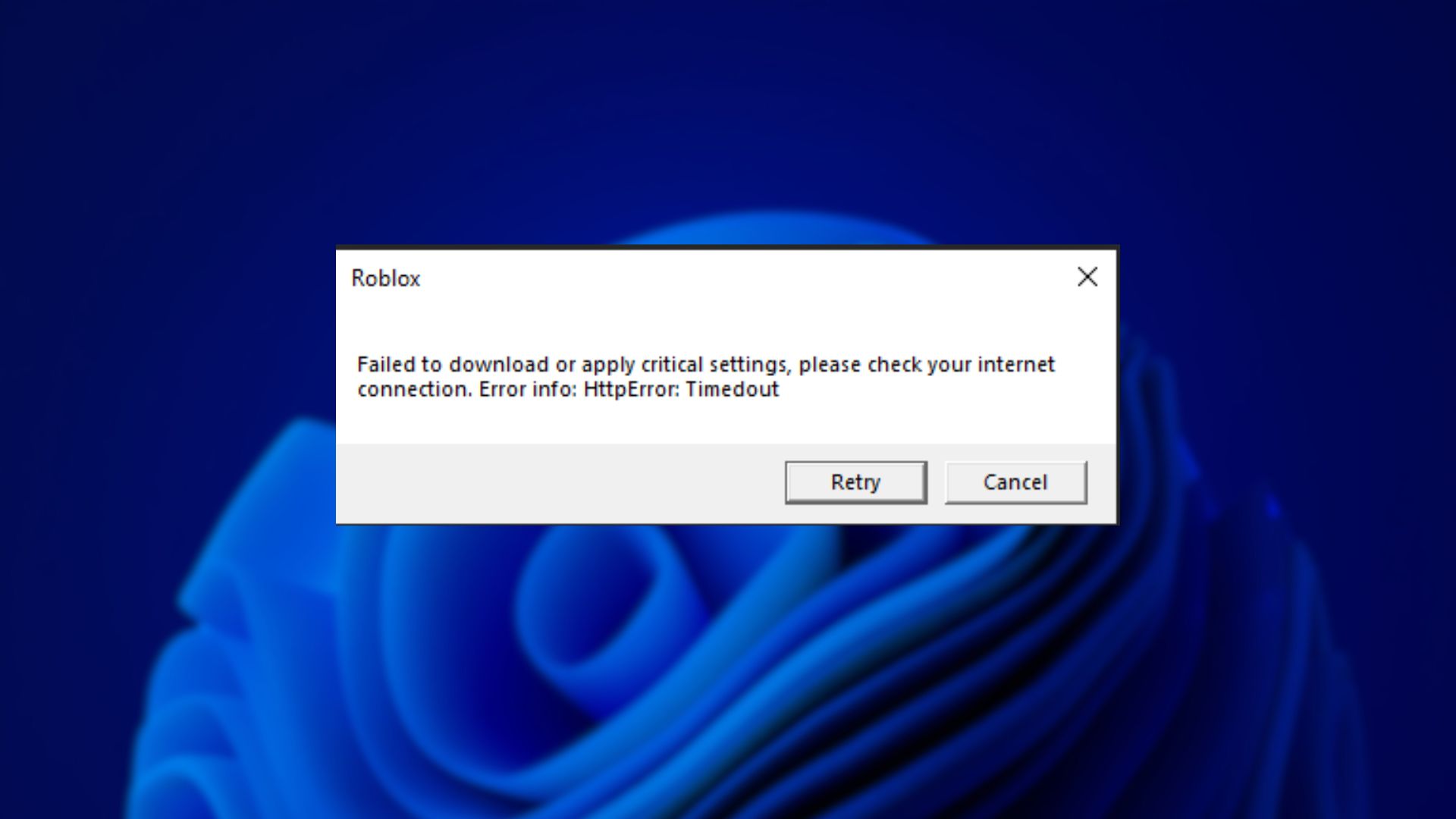


Why Is Microsoft Roblox Not Working Solutions For 2026 Roblox . Roblox Not Working Right How To Fix Common Issues How To Install 2 . Roblox Not Launching Platform Usage Support Developer Forum Roblox . Is Roblox Down Right Now Issues Roblox Not. Why Is Microsoft Roblox Not Working Solutions For 2026 Roblox Mic Not Working
#7 Gallery how to fix roblox player not launching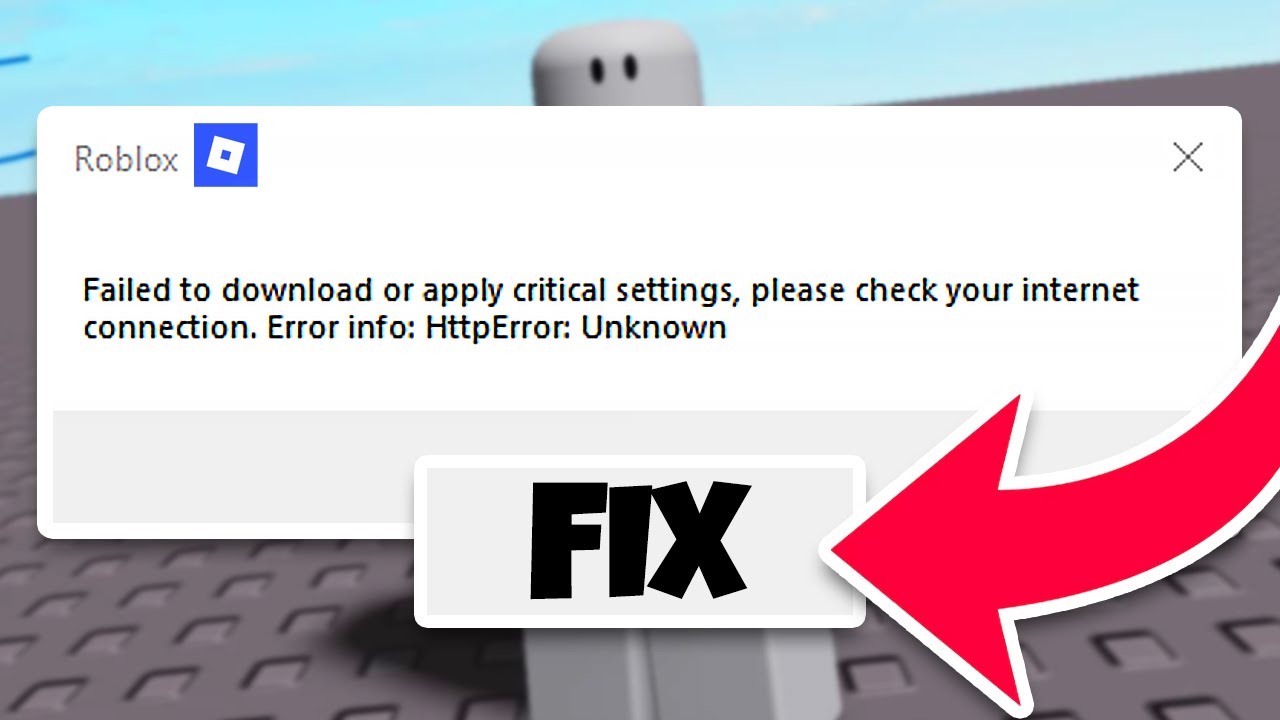

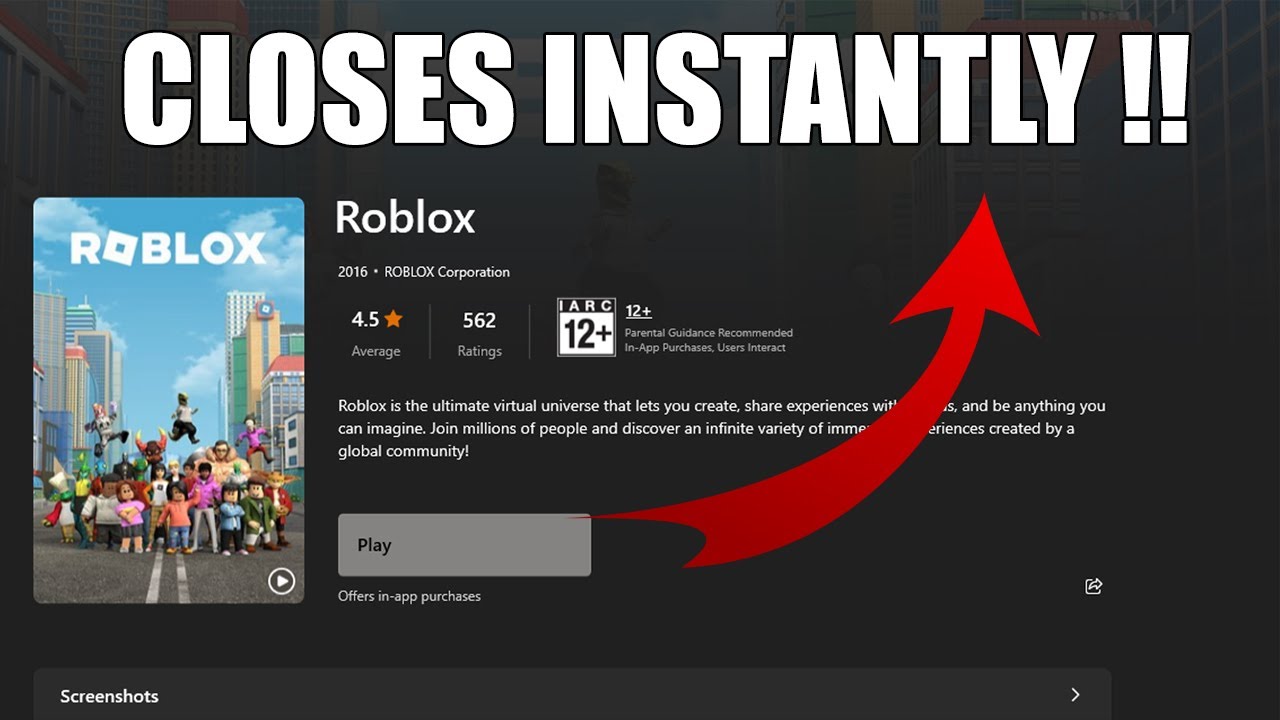

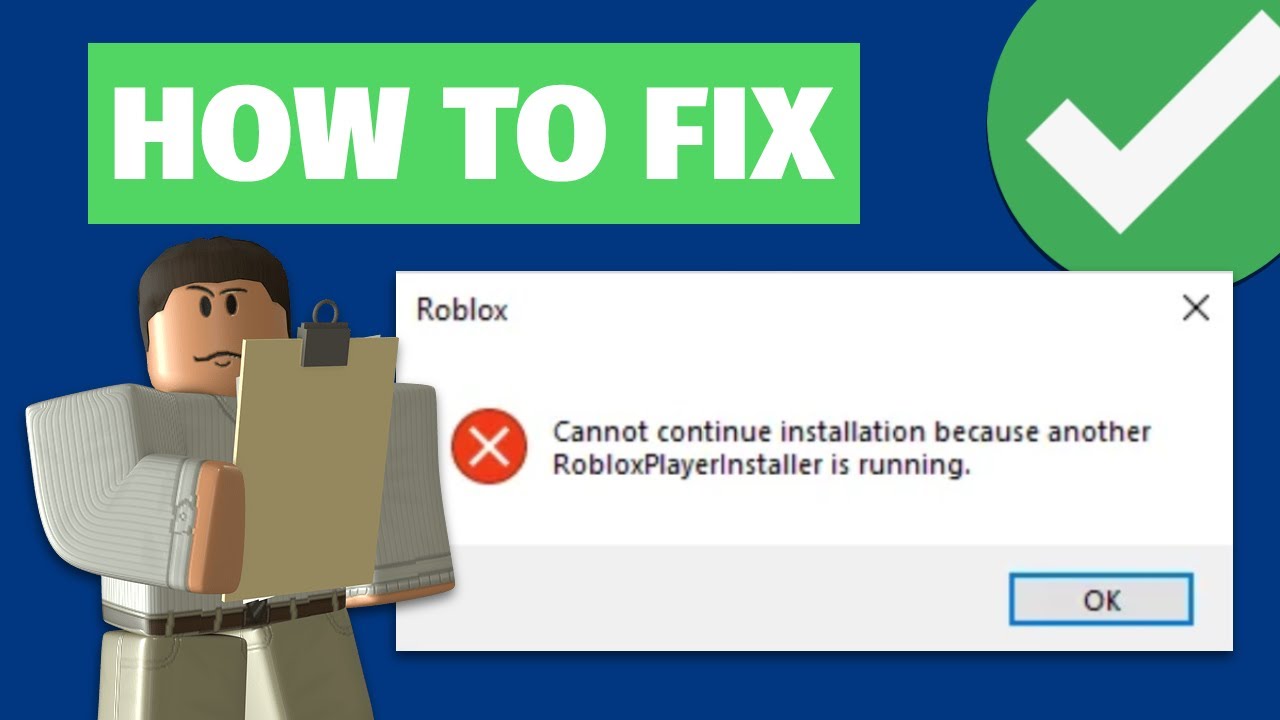
How To Fix Roblox Error Failed To Download Or Apply Critical Settings . How To Fix Roblox Not Launching In Windows 10 11 100 Working Solution . How To Fix Roblox Not Launching And Closes Instantly In Microsoft Store . How To Fix Roblox Not Launching Full Guide YouTube . How To Fix Cannot Continue Because Another Roblox Player