Navigating the social landscape of Roblox can sometimes feel like a mini-game itself especially for busy adults balancing life work and gaming. This comprehensive guide simplifies the process of how to add people on Roblox whether you are on PC mobile or within a game. We understand gamers value relaxation and fun but also efficiency. Learn the straightforward steps to connect with friends accept requests and even troubleshoot common issues preventing you from expanding your Roblox social circle. This resource aims to be your go-to solution helping you enhance your social gaming experience without wasting precious gaming time. Stay connected and enjoy more multiplayer adventures with your pals on Roblox today. Discover essential tips for finding usernames managing requests and ensuring your privacy settings support smooth friend additions enhancing your overall Roblox journey this month and beyond.
Related games- Guide to Mastering Gambling in GTA San Andreas
- Guide How to Make Interactive NPCs in Roblox Studio
- Guide What Kind of Game Is Overwatch FPS MOBA Explained
How do you send a friend request on Roblox?
You send a friend request on Roblox by navigating to the 'Friends' section, using the search bar to find their exact username, and then clicking the 'Add Friend' button on their profile. This method works on both PC and mobile, making it easy to connect with players you know.
What is the easiest way to add friends on Roblox?
The easiest way to add friends on Roblox is by searching for their exact username directly through the 'Friends' tab on the Roblox website or app. Alternatively, if you are in a game with them, clicking their avatar or name in the player list often presents an 'Add Friend' option, which is incredibly convenient.
Can you add friends on Roblox mobile and PC?
Yes, Roblox fully supports cross-platform friend adding and play. You can add friends whether you're playing on a PC, mobile device (iOS/Android), or Xbox. The friend request system is unified, so your friends list is accessible and functional across all platforms, allowing seamless connection regardless of device.
Why might I not be able to add someone on Roblox?
You might not be able to add someone on Roblox if their privacy settings prevent friend requests from 'Everyone', their friends list is full (Roblox has a 200-friend limit), or you have misspelled their username. Double-check the username for accuracy and consider asking them to send you a request instead if issues persist.
How do I accept a friend request on Roblox?
To accept a friend request on Roblox, go to the 'Friends' section and locate the 'Friend Requests' or 'Pending' tab. Here, you will see a list of incoming requests. For each request, simply click the 'Accept' button next to the sender's name. They will then be added to your friends list.
Is there a limit to how many friends I can have on Roblox?
Yes, there is a limit to how many friends you can have on Roblox. Typically, a Roblox account can have a maximum of 200 friends. Once this limit is reached, you will need to unfriend existing connections before you can send or accept new friend requests.
How do I find my friend's Roblox username?
The best way to find your friend's Roblox username is to ask them directly for the exact spelling, including any capitalization. If they are in a game with you, you can often click on their player name within the game's player list to view their profile, which displays their username, and send a request from there.
Hey there fellow gamers! Ever found yourself in a fantastic Roblox game, teaming up with someone awesome, and then realized you had no idea how to add them as a friend after the match? You are not alone. For many of us who juggle jobs, families, and life's endless to-do list, gaming is our precious downtime – a chance to unwind, connect with friends, and maybe even build some cool skills. But fumbling with friend requests can be a real buzzkill, taking away from that valuable relaxation time. This article is your straightforward, no-nonsense guide on how to add people on Roblox, making sure you spend less time searching and more time playing.
Roblox is more than just a game platform; it is a massive social hub where millions of US gamers connect daily. In fact, recent data shows that a significant portion of US gamers, around 87 percent, play regularly, often dedicating 10+ hours a week to their favorite titles. Social interaction is a huge driver, with mobile gaming leading the charge in accessibility and constant connectivity. For many adults, connecting with friends in games like Roblox enhances the experience, allowing for collaborative play, shared fun, and even a little friendly competition after a long day. We will cover everything from the basic username search to in-game additions and important privacy settings, ensuring you can easily expand your network and dive into more adventures with your buddies. Let us get you connected!
How do I add friends on Roblox using their username?
Adding friends by username is the most common and reliable method on Roblox. This approach works consistently across both PC and mobile platforms. The key is to have your friend's exact Roblox username handy, as the system is case-sensitive and requires precision to find the right player. It is a straightforward process designed to get you connected quickly, which is perfect for busy gamers.
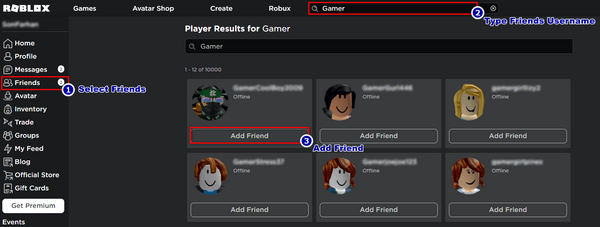
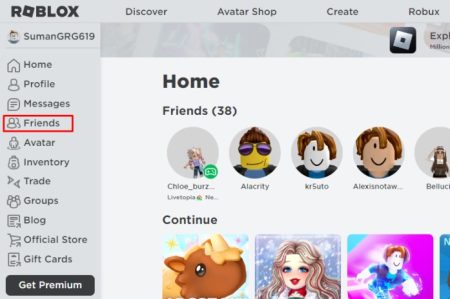
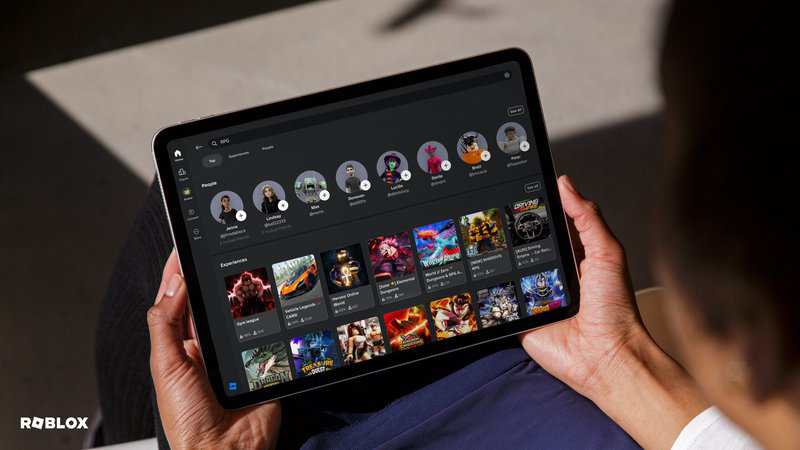
Step 1: Open Roblox and Navigate to Friends. First, launch the Roblox application or head to the Roblox website. Once logged in, look for the 'Friends' icon, usually represented by two stylized figures, located on the left-hand navigation bar on PC or at the bottom of the screen on mobile. Click or tap this to open your friends section.
Step 2: Access the Add Friend Search Bar. Within the Friends section, you will typically see a search bar. On PC, it might be labeled 'Search Friends' or 'Add Friend'. On mobile, there is usually a magnifying glass icon that reveals the search bar once tapped. This is where you will input your friend's username.
Step 3: Enter the Exact Username. Type your friend's Roblox username precisely into the search bar. Remember, even a single typo or incorrect capitalization can prevent the system from finding them. If you are unsure, double-check with your friend before sending the request. Once typed, press Enter on your keyboard or tap the search icon on mobile.
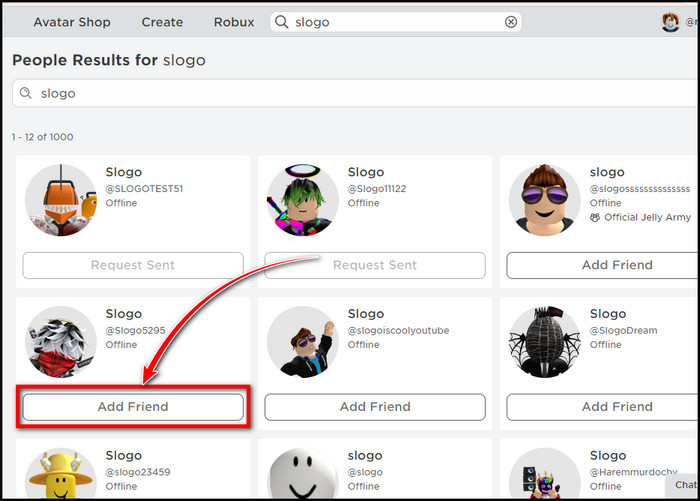
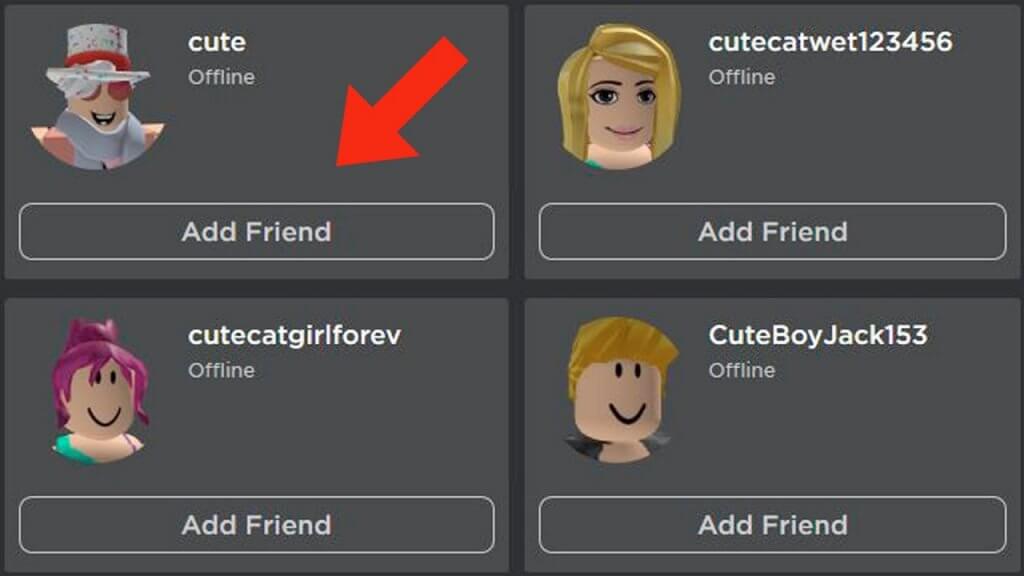
Step 4: Send the Friend Request. The search results should display your friend's profile. Verify that it is the correct person by checking their display name, avatar, or any other identifiable information. Next to their profile, you will see a 'Add Friend' button. Click or tap this button to send your request. A notification will appear, confirming that the request has been sent.
Can I add friends on Roblox while playing a game?
Absolutely! Adding friends directly within a game is incredibly convenient, especially when you meet a great teammate or competitor you want to connect with instantly. This method is often preferred by gamers who value uninterrupted play and want to keep the social momentum going. Roblox is designed to facilitate these in-game connections seamlessly, reflecting the increasing trend of social gaming where interactions happen live.
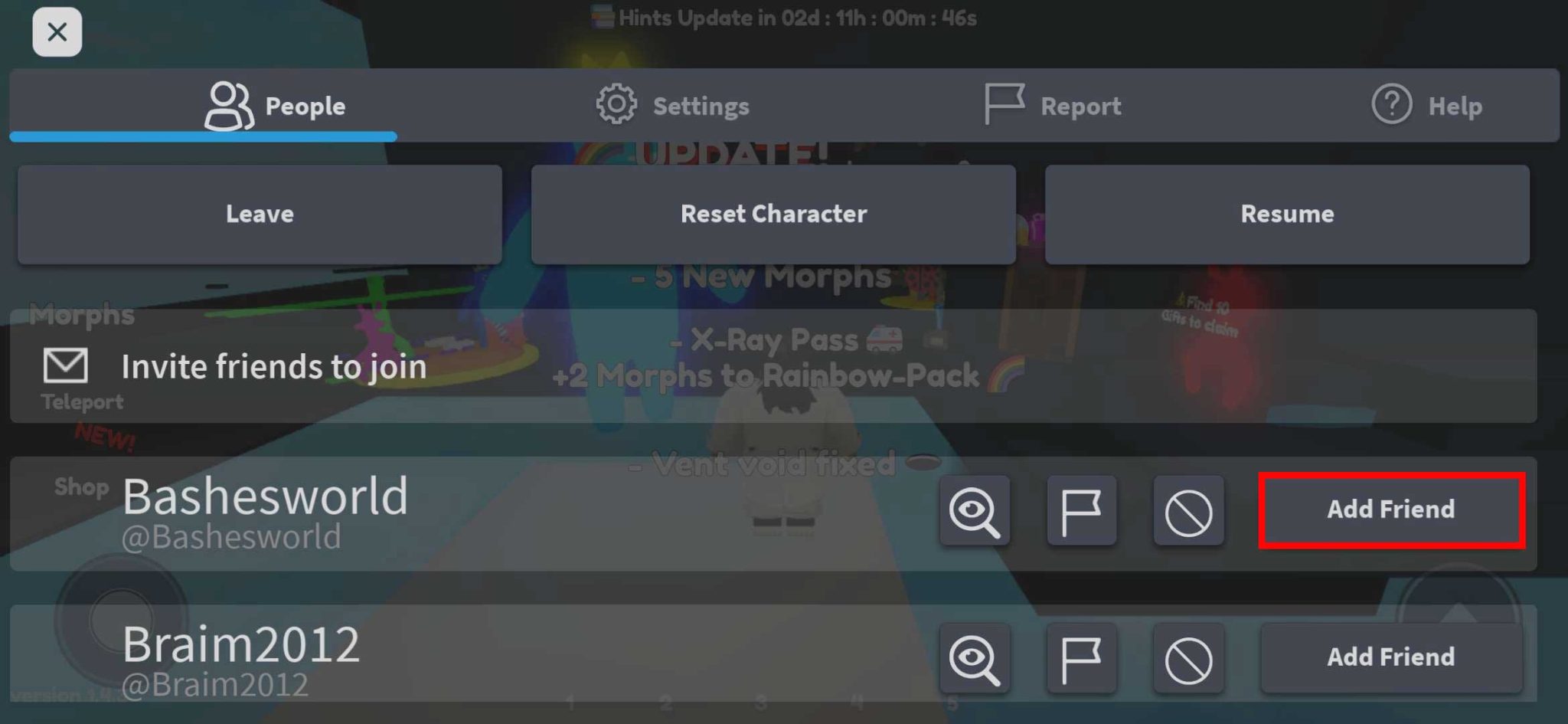
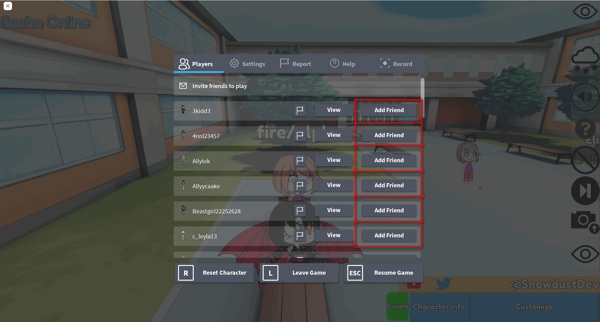
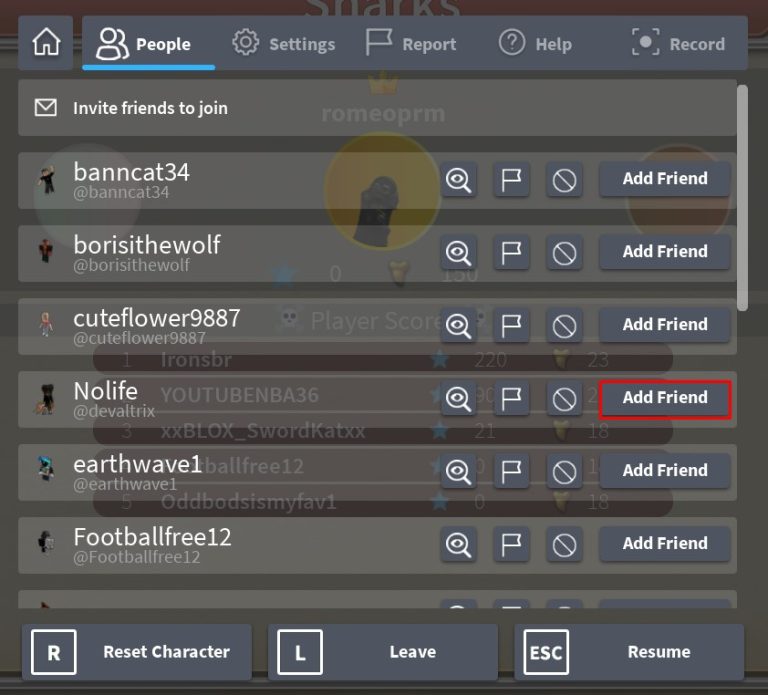
When you are in a game, you can usually add another player by clicking on their avatar or their name in the player list. This action typically brings up a small context menu with various options, including 'Add Friend'. Select this option, and a friend request will be sent to them. They will then receive a notification and can accept it when they are ready. This is particularly useful in popular social games this month where quick connections make all the difference.
What if I cannot find someone's username on Roblox?
Not being able to find a friend's username can be frustrating, especially if you know they are on the platform. This is a common pain point for many gamers. Several factors can contribute to this, and there are a few troubleshooting steps you can take to ensure you connect with the right person. Precise information is key in digital friend-finding.
First, always double-check the spelling and capitalization of the username. Roblox usernames are case-sensitive, meaning 'GamerTag123' is different from 'gamertag123'. Ask your friend to confirm their exact username verbally or by screenshot. If they have a display name, ensure you are searching for their actual username, not just their display name. Sometimes, privacy settings can also affect visibility; if a user has very strict settings, they might not appear in general searches. In such cases, your friend might need to adjust their privacy settings or send you the request instead.
How do I accept or decline a friend request on Roblox?
Managing your incoming friend requests is as important as sending them. Roblox makes it easy to review and decide who you want to add to your social circle. This control allows you to maintain a friend list that enhances your gaming experience, letting you choose connections that align with your play style and social preferences. It is a simple process, much like accepting an invite to a party.
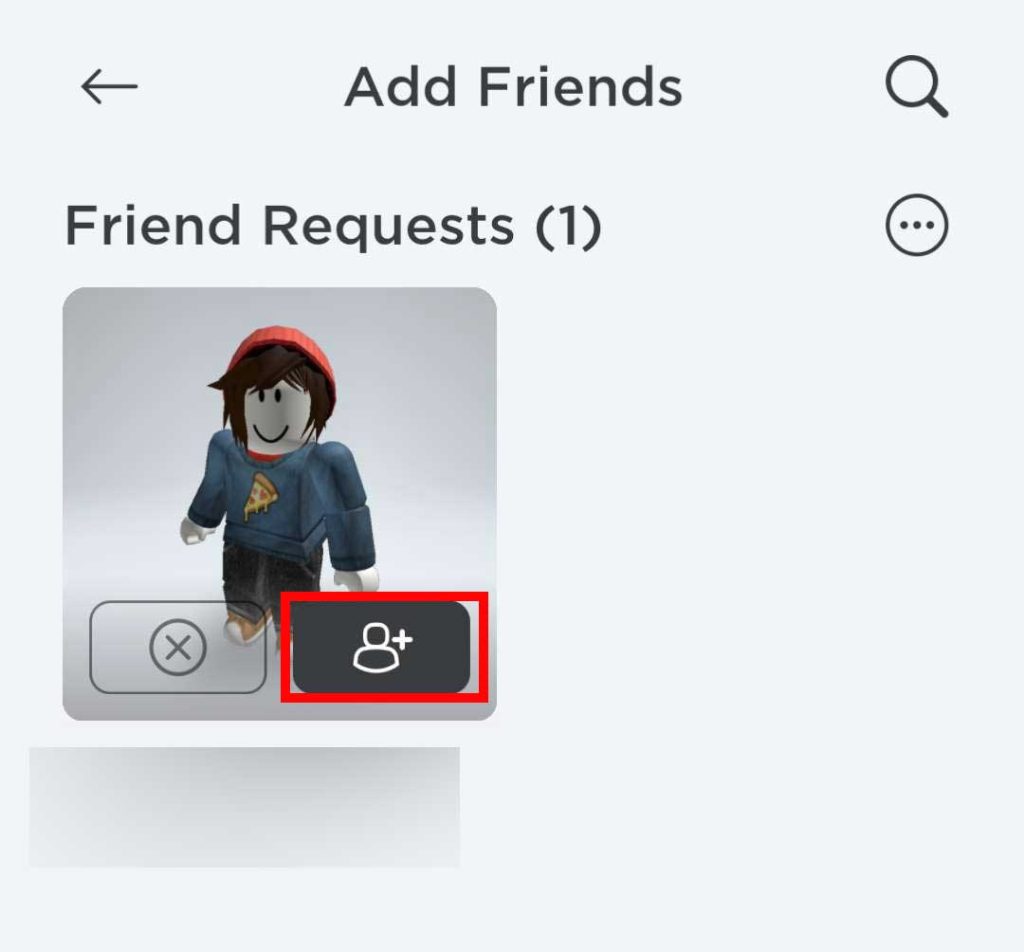
To accept or decline a request, navigate back to the 'Friends' section from the main Roblox menu. Here, you will see a sub-tab or section specifically for 'Friend Requests' or 'Pending'. Click on this to view all the requests you have received. For each request, you will typically see the sender's username and avatar. Next to their name, there will be two buttons: 'Accept' and 'Decline'. Simply click the appropriate button for each request. Once accepted, that player will be added to your friends list, and you can start playing together!
Are there privacy settings for adding friends on Roblox?
Yes, Roblox offers robust privacy settings that allow you to control who can send you friend requests and how easily others can find you. This is a critical feature, especially for adult gamers who prioritize managing their online interactions and balancing gaming with personal life. These settings empower you to tailor your social experience to your comfort level.
To access these settings, go to your 'Account Settings' (usually found by clicking the gear icon in the top right corner). Then navigate to the 'Privacy' tab. Here, you will find options such as 'Who can send me friend requests?' You can often choose between 'Everyone', 'Friends of Friends', or 'No One'. Adjusting this setting determines how easily others can initiate contact with you. For instance, if you set it to 'No One', only you can send requests, ensuring a highly controlled social environment. Always review these settings periodically to ensure they align with your current preferences, especially if you are facing issues with sending or receiving requests.
How do I add friends on Roblox on mobile devices?
Adding friends on Roblox via a mobile device is incredibly similar to the PC experience, optimized for touchscreens and on-the-go convenience. Given the dominance of mobile gaming (a significant portion of US gamers play on mobile devices), Roblox ensures this process is intuitive and efficient. Whether you are on an Android phone or an iPhone, the steps are streamlined for quick interaction.
First, open the Roblox app on your device. On the bottom navigation bar, you will find a 'Friends' icon. Tap this to enter your friends list. Similar to the PC version, there will be a search bar or a magnifying glass icon to initiate a search. Tap this, type in your friend's exact username, and then tap the search button. Their profile will appear, and you can tap the 'Add Friend' button to send the request. Accepting requests on mobile follows the same path; just navigate to the 'Friend Requests' section within the Friends tab.
What are the benefits of having friends on Roblox?
Having friends on Roblox significantly enhances your overall gaming experience, transforming it from a solo adventure into a vibrant social journey. For many adult gamers, social interaction is a key motivator, offering stress relief and a sense of community. Connecting with friends makes Roblox more engaging, fun, and often more rewarding, fostering valuable online relationships.
The benefits are numerous: you can easily join your friends in their games, making cooperative play seamless and spontaneous. Friends can invite you to private servers or groups, opening up exclusive content and collaborative opportunities. Sharing experiences, trying out new games together, and even engaging in friendly competition adds layers of enjoyment. It also makes finding reliable teammates for popular co-op experiences much easier, improving your in-game performance and enjoyment. Ultimately, friends make Roblox feel more alive and personalized, turning it into a true social playground.
How can I manage my Roblox friends list?
Effectively managing your Roblox friends list is essential for a smooth and enjoyable social gaming experience. As your list grows, you might want to organize, unfollow, or even remove friends to keep your network relevant and friendly. This level of control ensures your gaming environment remains positive and aligned with your social preferences, preventing clutter and unwanted interactions.
To manage your friends, navigate to the 'Friends' section from the main Roblox menu. Here, you will see a list of all your current friends. You can typically click on any friend's name to view their profile. From their profile page, you will find options like 'Unfriend' or 'Follow'. 'Unfriend' removes them from your list entirely, while 'Unfollow' stops receiving updates from them without fully unfriending them. You can also organize your friends by sorting options (e.g., online status, alphabetically). Periodically reviewing and curating your friends list ensures that your Roblox social experience remains active and enjoyable, allowing you to focus on the connections that matter most.
Why can not I send a friend request to someone on Roblox?
Encountering issues when trying to send a friend request on Roblox can be perplexing, but several common reasons explain why this might happen. Understanding these can save you time and frustration, helping you troubleshoot effectively and get back to connecting with your gaming pals. It is like a small puzzle before you get to the main game.
One common reason is that the user you are trying to add has their privacy settings configured to prevent friend requests from 'Everyone' or 'Friends of Friends'. They might have set it to 'No One', meaning only they can send out requests. Another possibility is that their friends list is full; Roblox has a limit on the number of friends a user can have, usually 200. If they have reached this cap, they cannot accept new requests until they unfriend someone. Lastly, ensure you have typed their username correctly; a simple typo is often the culprit. If all else fails, ask your friend to send a request to you instead, as that often bypasses these issues.
Can I cross-play and add friends between PC and console/mobile on Roblox?
Yes, absolutely! Roblox is renowned for its excellent cross-platform compatibility, a huge benefit for its diverse player base. This means you can seamlessly add friends and play with them whether you are on a PC, a mobile device (iOS or Android), Xbox, or even a VR headset. This cross-play capability is a major draw for gamers, allowing families and friends to connect regardless of their preferred gaming hardware, reflecting modern gaming trends where flexibility is key.
The method for adding friends remains consistent across platforms: you will typically use their Roblox username. A player on a PC can add a friend playing on an Xbox, and vice versa, by simply performing a username search through the Friends section of their respective Roblox application. Once added, they will appear on your friends list, and you can join their games or invite them to yours, irrespective of the device they are using. This unified social system makes Roblox an incredibly accessible and social platform for everyone.
FAQ Section
How do I find my Roblox username if I forgot it?
If you forgot your Roblox username, you can usually recover it by logging in with your email address or phone number associated with your account. Go to the login page, click 'Forgot Username/Password,' and follow the prompts. Roblox will send your username to your registered contact method. This ensures you can always retrieve your access details.
What is the friend limit on Roblox?
Roblox typically allows users to have up to 200 friends on their friends list. Once you reach this limit, you will not be able to send or accept new friend requests until you unfriend some existing connections. It's a good idea to manage your list regularly to keep it updated.
Can I send a friend request to someone who is not online?
Yes, you can send a friend request to any Roblox user regardless of their online status. The request will be sent to their account, and they will receive a notification the next time they log in or check their pending friend requests. Their online status does not affect the sending or receiving process.
What does 'Follow' mean on Roblox compared to 'Friend'?
'Following' someone on Roblox means you get updates on their public activity, like what games they are playing or creations they make, without being added to their friends list. 'Friending' creates a two-way connection allowing you to join their private servers, see more detailed online status, and communicate directly through Roblox chat. It is a deeper level of connection.
How do I block someone on Roblox?
To block someone on Roblox, navigate to their profile page. There, you will usually find a three-dot menu icon. Click or tap this icon, and an option to 'Block User' will appear. Confirm your choice, and the user will be blocked, preventing them from sending you messages or friend requests, and limiting their interaction with you. This is an important tool for maintaining a positive gaming experience.
Is there a way to add friends using a game code or ID?
No, Roblox does not currently support adding friends using game codes or unique player IDs beyond their username. The primary method for connecting with other players outside of direct in-game interaction is always through their specific Roblox username. Ensure you have the exact username for a successful friend request.
There you have it! Adding friends on Roblox does not have to be a complicated task, even with all the demands of adult life. By following these straightforward steps, whether you are on your PC after a long day at work or sneaking in some mobile gaming during a break, you can easily connect with your pals and enhance your social gaming experience. Remember, gaming is about fun and connection, and Roblox provides a fantastic platform for both. Keep those friend lists active and dive into your next adventure together!
What is your biggest gaming challenge when it comes to connecting with friends online? Comment below and share your experiences!
Adding friends on Roblox is crucial for social gaming. Methods include searching by username in-game mobile and PC options. Understand privacy settings to manage who can send requests. Accepting or declining requests is simple via the Friends tab. Troubleshooting common issues like incorrect usernames or full friends lists ensures smooth connections. Connecting with friends enhances collaborative play and social experiences on the platform.
35


How To Add People Roblox Easily Your 2026 Guide How To Add Friends On. How To Add Someone To Team Create Roblox Full Guide YouTube . How To Add People Roblox Easily Your 2026 Guide Add A Friend In Game 1 2048x945 . 3 Ways To Add Friends On Roblox WikiHow Aid596613 V4 728px Add Friends On Roblox Step 4 . How To Add People Roblox Easily Your 2026 Guide


How To Add People Roblox Easily Your 2026 Guide Add Friend Icon 1024x952 . How To Add People Roblox Easily Your 2026 Guide Roblox How To Add Friends 13 1024x389 . How To Add People Roblox Easily Your 2026 Guide Add Friend Roblox Xbox . How To Add Friends On Roblox 2026 Send Friend Request On Roblox . How To Create A Group On Roblox 2026 Make Roblox Group YouTube



How To Add Friends On Roblox 2026 Easy Guide YouTube . How To Add Friends In Roblox Roblox How To Add Friends 8 1 466x320 . How To Add People Roblox Easily Your 2026 Guide Add Friends Roblox . How To Add People Roblox Easily Your 2026 Guide Roblox Pc Add Friends . How To Add Friends On Roblox Tutorial YouTube



How To Add People Roblox Easily Your 2026 Guide V4 460px Add Friends On Roblox Step 11 . How To Add Friends On Roblox 2026 YouTube Hqdefault . 3 Ways To Add Friends On Roblox WikiHow Aid596613 V4 728px Add Friends On Roblox Step 6 . How To Add Friends On Roblox Add Friend Get Basic Idea 1024x576 . 3 Ways To Add Friends On Roblox WikiHow Aid596613 V4 728px Add Friends On Roblox Step 7



How To Add A Roblox Card To Your Account In 2026 . How To Add Friends On Roblox Friends On Roblox 450x299 . How To Add Friends On Roblox PC And Console V4 460px Add Friends On Roblox Step 5 . How To Add Friends On Roblox PC Mobile XBOX 2022 Guide How To Add Friends On Roblox . How To Add People Roblox Easily Your 2026 Guide



How To Add Friends On Roblox 2026 YouTube . How To Add People Roblox Easily Your 2026 Guide . How To Add People To Help Them Build In Roblox Studio YouTube Hqdefault . How To Add People Roblox Easily Your 2026 Guide . Roblox How To Add Friends Gameranx How To Add Friends On Roblox Scaled



How To Add Friends On Roblox PC And Console V4 460px Add Friends On Roblox Step 3 . How To Add Friends On Roblox YouTube . How To Add Friends On Roblox PC Mobile XBOX 2022 Guide Roblox Add Friends In Game 2 . How To Add Friends On Roblox Click On Add Friend 768x695 . How To Message On Roblox 2026 A Quick Guide