This guide explains how to scale meshes beyond maximum size in Roblox Studio for advanced builders and game developers You often encounter size limitations when importing complex models hindering your creative vision This informational resource details practical methods including external software workflows to overcome these constraints ensuring your large scale builds are seamlessly integrated and perform optimally Discover techniques to split models effectively and reassemble them within Roblox Studio maintaining structural integrity and visual quality for expansive worlds and detailed assets This trending information helps creators avoid common frustrations and enhance their development process ultimately leading to more immersive and visually stunning Roblox experiences
What are the Roblox mesh size limits and why do they matter for creators?
Roblox Studio imposes a maximum individual mesh part size, typically 2048 studs on any axis, to ensure consistent game performance across diverse devices, manage server load, and optimize data transfer. This restriction helps maintain smooth gameplay, prevent lag, and minimize crashes, crucial for the millions of users, including busy adult gamers who value reliable experiences.
How can external 3D modeling software like Blender help overcome Roblox's scaling limitations?
External 3D software such as Blender is essential for bypassing Roblox's mesh size limits by allowing you to create models of any scale and then strategically split them into smaller, compliant pieces. These smaller segments are individually exported and then reassembled within Roblox Studio. This method leverages professional workflows to integrate massive builds while maintaining performance.
What's the best approach to splitting an oversized mesh into manageable parts for Roblox Studio?
The best approach involves using Blender's Knife tool for precise cuts, often along natural seams or flat surfaces of your mesh. After cutting, use the Separate by Selection function to turn each segment into an independent object. This ensures each part adheres to Roblox's 2048-stud limit, making them importable and easier to manage while minimizing visible seams.
How do I ensure perfect alignment when reassembling split meshes within Roblox Studio?
To ensure perfect alignment, export each split mesh from Blender with its origin point centered, or at a consistent reference point. In Roblox Studio, use precise position values (X, Y, Z coordinates) and snapping tools to align the parts. Importing a reference block from Blender that shares the same origin can also aid in accurate placement, making the reassembly process smooth and visually flawless.
What are the common pitfalls to avoid when scaling meshes beyond limits and importing them?
Common pitfalls include inconsistent scaling between parts, misaligned UV maps across split segments, and forgetting to optimize mesh density before export. Avoid making too many cuts, which can complicate reassembly and increase draw calls. Always test your imported segments in Roblox Studio to check for visual gaps or performance issues early in the development cycle, saving time and frustration.
Will using multiple split meshes negatively impact game performance in Roblox Studio?
While having many separate parts can slightly increase draw calls, the impact is generally less severe than trying to force a single, unoptimized massive mesh. Proper optimization techniques like reducing polygon count, using efficient textures, and employing Roblox's streaming capabilities can mitigate performance concerns. Prioritizing mesh splitting and smart reassembly is a balance to achieve both scale and smooth gameplay.
Are there any in-studio workarounds or scripts for adjusting very large models without external software?
Directly scaling a single mesh part beyond the 2048-stud limit within Roblox Studio is not possible, even with scripts. However, for models composed of *multiple* parts, you can scale the entire `Model` object (the parent container) to be much larger. This doesn't bypass the individual part limit but allows groups of parts to form enormous structures. External software remains necessary for single, oversized mesh parts.
Ever found yourself staring at a massive, beautifully designed mesh in Blender, only to hit that frustrating size limit wall when trying to bring it into Roblox Studio? You are definitely not alone. For many US gamers, particularly those who balance gaming with demanding jobs and family life, diving into creation in platforms like Roblox is a cherished way to unwind, express creativity, and even build skills. But hitting technical roadblocks like the maximum mesh size can quickly turn fun into frustration. This guide is for the dedicated builders, the visionaries who dream of expansive worlds and intricate structures that push the boundaries of Roblox. We know you value practical solutions that save time and deliver results, allowing you to get back to what you love doing: playing and creating without unnecessary hassle.
In 2026, Roblox remains a powerhouse, with a significant portion of the nearly 87% of US gamers who play regularly, spending upwards of 10 hours a week, often engaging in social play and creation. For many, creating in Roblox Studio is more than just a hobby; it's a way to build communities, share experiences, and even learn valuable design skills. When you encounter limitations like how to scale meshes beyond maximum size Roblox Studio imposes, it can feel like your creative wings are clipped. But don't worry, we're here to equip you with the knowledge and techniques to bypass these limitations, ensuring your epic builds see the light of day. We'll cover everything from understanding the 'why' behind these limits to step-by-step external software workflows and crucial performance optimization tips.
What are the Roblox Mesh Size Limits and Why Do They Exist?
Roblox Studio enforces a maximum size limit for individual mesh parts, typically around 2048 studs on any single axis. This restriction isn't arbitrary; it's primarily put in place to maintain game performance and stability across the vast array of devices Roblox runs on, from high-end PCs to mobile phones. Large meshes can be incredibly resource-intensive, impacting loading times, frame rates, and overall player experience. Think about it: an average US gamer today values smooth gameplay, whether they're jumping into a quick session after work or relaxing with family-friendly titles on a tablet. These limits help ensure a consistent, playable experience for everyone, minimizing lag and crashes, which are major pain points for any gamer.
Beyond performance, these limits also help manage data transfer and server load. When you upload a mesh, it needs to be processed and stored. Extremely large, single meshes would strain the system. So, while it feels restrictive, it's a necessary compromise for a platform that serves millions of concurrent users globally, many of whom are balancing gaming with other life responsibilities and just want their games to work. Understanding these foundational reasons helps us appreciate the need for clever workarounds.
Why Can't I Scale My Mesh Beyond Roblox Studio Limits Directly?
When you try to scale a mesh beyond its predefined limit using Roblox Studio's built-in scaling tools, the engine simply won't allow it. The bounding box of the mesh part will refuse to expand past the 2048 stud mark. This hard limit is embedded in the engine's core architecture for the performance and stability reasons discussed earlier. It's a non-negotiable threshold that applies to individual `MeshPart` objects. You can scale models (groups of parts) much larger, but the individual components still adhere to these internal limits.
This means if your vision involves a single, continuous mesh object that exceeds these dimensions, direct scaling within Studio is not an option. It's a common frustration for creators, especially those coming from other 3D modeling software where such constraints might not be as explicit. For busy gamers who want to quickly implement their ideas, encountering this technical barrier can be a significant setback, leading to wasted time and effort. Fortunately, skilled creators have developed reliable methods to bypass this limitation without breaking the rules or the game.
How Do External 3D Programs Help Scale Large Meshes?
External 3D modeling software like Blender is your secret weapon for overcoming Roblox's mesh size limitations. These programs allow you to design and create models of any scale imaginable, without the constraints imposed by Roblox Studio's engine. The key strategy involves breaking down your massive mesh into smaller, more manageable pieces that each fit within Roblox's size parameters. These smaller pieces can then be imported individually and reassembled within Roblox Studio.
Think of it like building a huge LEGO set: you don't start with one giant brick; you use many smaller, interlocking pieces. Blender, being free and incredibly powerful, is the go-to choice for many Roblox developers. It provides the tools necessary for precise cutting, exporting, and even basic optimization of your meshes before they ever touch Roblox Studio. Using external software taps into a professional workflow that many experienced creators utilize, saving them from setup issues and performance problems that might arise from poorly optimized, oversized models.
Step-by-Step Guide Using Blender to Split and Export Huge Meshes
Here’s a practical workflow for splitting your oversized mesh in Blender and preparing it for Roblox Studio:
Import Your Large Mesh into Blender: Start by opening Blender and importing your colossal 3D model. Ensure its scale is somewhat reasonable, though it's fine if it's currently gigantic.
Prepare for Splitting: Switch to **Edit Mode** (Tab key). You'll want to enable **Occlude geometry** (button with two overlapping squares) to select through the mesh if needed. Consider using **Wireframe mode** (Z key, then Wireframe) for better visibility.
Utilize the Knife Tool (K): This is your primary tool for precise cuts. Press `K` to activate it, then click to define points for your cut line. Press `Enter` to finalize the cut. For straight cuts, hold `C` for angle snapping, and `Z` for cutting through. Aim to make cuts along natural seams or flat surfaces to minimize visual impact after reassembly.
Separate by Selection: After making a cut, select the faces or vertices of the section you want to separate. Press `P` and choose **
Understand Roblox Studio mesh size limits Implement external 3D software for scaling models Learn effective mesh splitting and reassembly techniques Optimize performance for large scale meshes in Roblox Studio Explore in-studio workarounds and community best practices for massive builds.
35#1 Gallery how to scale meshes beyond maximum size roblox studio


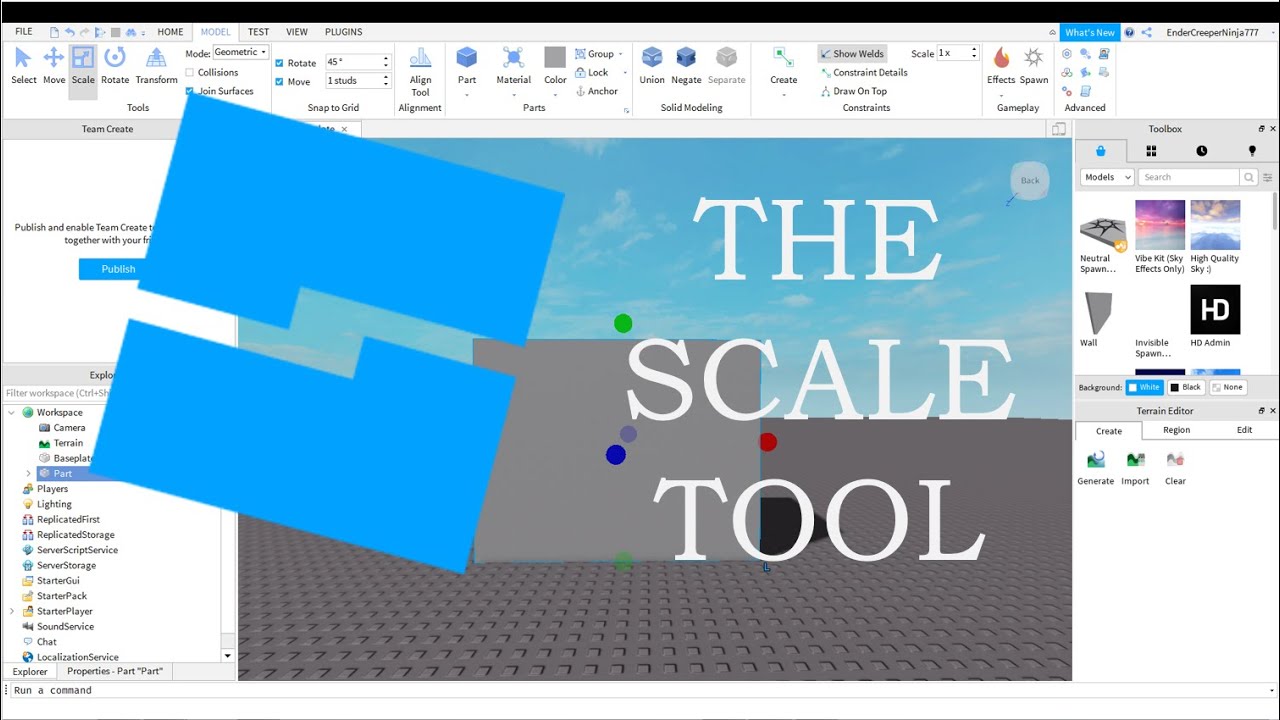

How To Scale A Mesh In Roblox Studio YouTube . How UI Scaling Works In Roblox Studio YouTube . How To Scale In Roblox Studio At Elaine Stetler Blog 5rpb9 . How To Use The Scale Tool In Roblox Studio YouTube . Scaling Meshes In Studio Art Design Support Developer Forum Roblox 2 625x500
#2 Gallery how to scale meshes beyond maximum size roblox studio




How To Precisely Resize Models In Roblox Studio YouTube . Size Full Guide To The Size Property And How To Use It Community . How To Scale Meshes Beyond Maximum Size Roblox Studio Games Learning Gaming Tips And. How To Scale In Roblox Studio At Elaine Stetler Blog . How To Scale Meshes Beyond Maximum Size Roblox Studio Games Learning Logo
#3 Gallery how to scale meshes beyond maximum size roblox studio



Roblox Studio How To Scale Parts And Models Make Things Bigger Or . How To Scale In Roblox Studio At Elaine Stetler Blog . Make Your Own Roblox Meshes A Simple Guide . How To Import A Mesh Into Roblox Studio YouTube . How To Change Model Size In Roblox Studio YouTube
#4 Gallery how to scale meshes beyond maximum size roblox studio


How To Scale GUI Properly In Roblox Studio YouTube . How To Use Roblox Studio A Step By Step Guide V4 460px Use Roblox Studio Step 12 . How To Turn A Model Into A Mesh In Roblox Studio YouTube . Make Your Own Roblox Meshes A Simple Guide . 2022 HOW TO CHANGE PLAYER SCALE IN ROBLOX STUDIO YouTube
#5 Gallery how to scale meshes beyond maximum size roblox studio



Make Your Own Roblox Meshes A Simple Guide . 2026 Learn How To Scale UI For Different Devices In Roblox Studio Hqdefault . How To Import Meshes Into Roblox Studio YouTube . Make Your Own Roblox Meshes A Simple Guide . How To Scale UI On All Devices Roblox Studio YouTube
#6 Gallery how to scale meshes beyond maximum size roblox studio


Roblox 101 How To Create Custom Meshes 4 . A Better Way To Scale UI Community Tutorials Developer Forum Roblox . How To Insert Meshes In Roblox Studio With Textures 2 Ways YouTube . Make Your Own Roblox Meshes A Simple Guide . Change Roblox Server Size A Simple Guide 4 Edit Game Settings
#7 Gallery how to scale meshes beyond maximum size roblox studio


Roblox How To Mesh A Brick And Change Its Scale YouTube . EDITABLE MESH TUTORIAL UPDATED Roblox Studio YouTube . How To Scale Gui In Roblox Studio Properly YouTube . The PROPER Way To Scale Gui Roblox Studio YouTube . How To Create Meshes In Roblox 2 Copy 46