Unlock the secrets to capturing your favorite sounds from Steam games with our comprehensive guide on how to rip Steam game audio. Many gamers, especially those juggling jobs and family, cherish the immersive soundtracks and impactful sound effects that define their gaming experiences. Whether you are aiming to revisit a nostalgic tune, create custom ringtones, or integrate iconic sounds into personal non-commercial projects, understanding the process of audio extraction is incredibly valuable. This guide provides clear, actionable steps for various methods, from simple in-game recording techniques to more advanced file extraction from Steam's directories. We will navigate common challenges, discuss essential tools, and clarify important legal considerations, ensuring you can safely and effectively access the audio gems within your Steam library. Dive in to enhance your appreciation for game audio and unlock new creative possibilities.
Related games- Guide to Homebrew Gaming What It Is And Why Try It
- Guide To Roblox Scariest Games How To Survive
- Guide to NE Football Game Times 2026
- How To Gaming PC Build Guide 2026 Pro Tips & Tricks
What's the easiest way to get music from Steam games?
The easiest way to get music from Steam games for personal use is by using recording software like OBS Studio while the game plays. This captures the audio directly from your system without needing to delve into game files. Alternatively, check the game's installation folder for a 'Sound' or 'Music' directory that might contain easily accessible .ogg or .wav files.
Can I extract sound effects from my PC games?
Yes, you can extract sound effects from your PC games. The method depends on how the game stores its audio. For older or simpler games, sound effects might be found directly as .wav or .ogg files in an 'SFX' folder within the game directory. For newer games, you'll likely need specialized asset extraction tools like QuickBMS or AssetStudio to unpack proprietary archives and locate specific sound effect files.
Is it okay to download game soundtracks I don't own?
No, it is generally not okay to download game soundtracks you don't own. Downloading from unofficial sources constitutes copyright infringement. If you love a game's soundtrack, the ethical and legal way to obtain it is to purchase the official soundtrack from Steam, the developer's website, or authorized music platforms, which directly supports the creators.
What software rips audio from Steam?
There isn't one universal software that "rips" audio from all Steam games due to varied game engines and file formats. For recording live audio, OBS Studio is excellent. For extracting files directly, popular tools include QuickBMS (requires game-specific scripts), AssetStudio (for Unity games), and Umodel (for Unreal Engine games). The best software depends on the specific game's architecture.
Where are Steam game audio files stored?
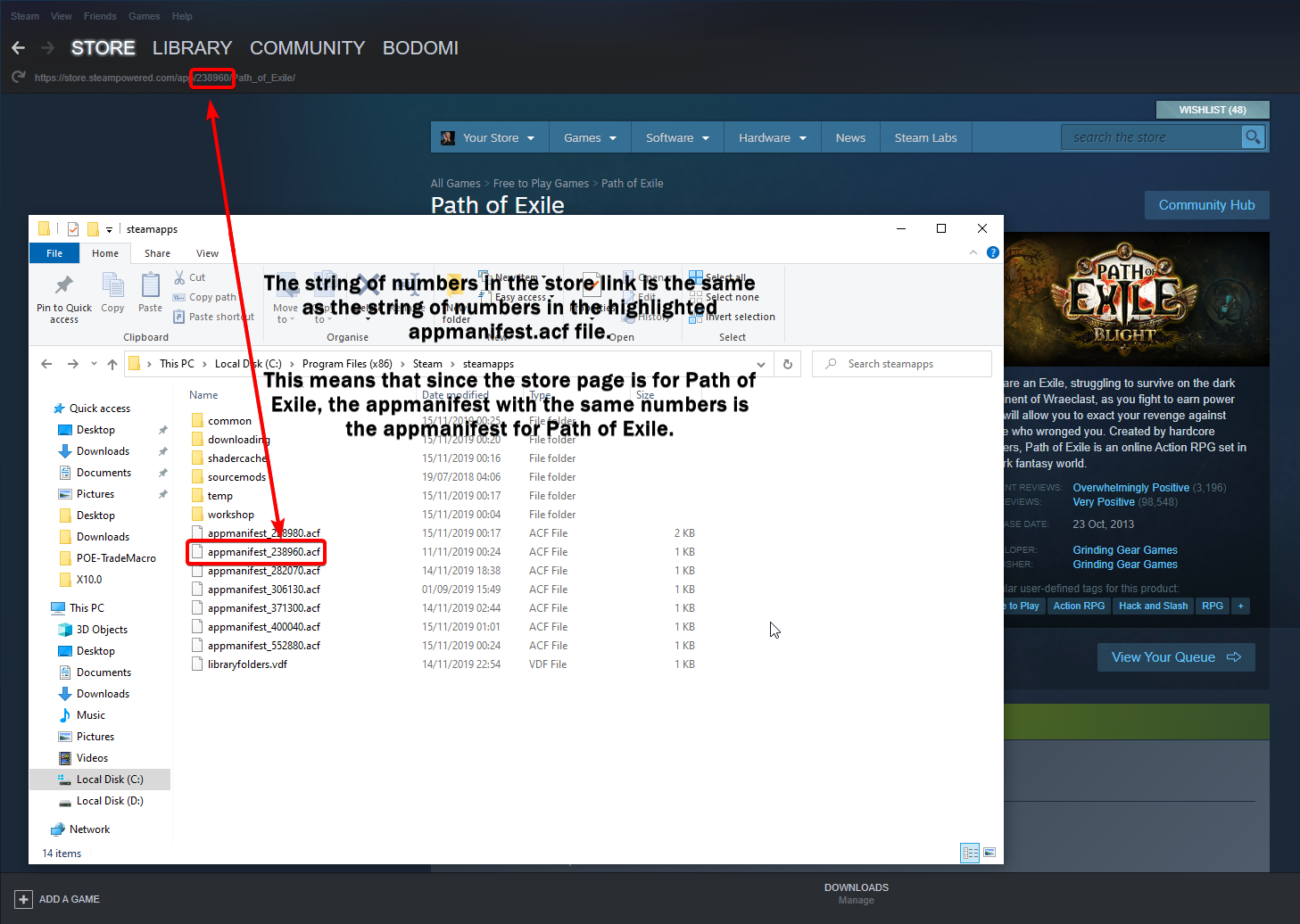
Steam game audio files are typically stored within the game's installation directory, usually found at C:Program Files (x86)Steamsteamappscommon[Your Game Name]. Inside this folder, look for subdirectories like 'Audio', 'Sound', 'Music', or 'Assets'. For modern games, audio may be packed into large archive files (.pak, .bnk, .uasset) rather than individual, easily accessible files.
What tools are essential for beginners wanting to rip Steam game audio?
Beginners should start with OBS Studio for direct recording and a file explorer to manually check game directories. For more advanced extraction, tools like QuickBMS with specific game scripts or asset extractors like Umodel can be invaluable, though they require a bit more technical comfort and community research for specific game compatibility.
How can I ensure the highest quality when recording game audio?
To ensure high quality, use lossless audio formats like FLAC or WAV when recording with tools like OBS. Adjust your recording software's bit rate and sample rate settings to match or exceed the game's output, typically 44.1 kHz or 48 kHz at 16 or 24-bit depth. Minimize background noise and use dedicated game audio capture sources in OBS to isolate the sound.
Are there specific Steam games where ripping audio is easier or harder?
Ripping audio from older or indie games that use common, unencrypted file formats (like .ogg, .wav, .mp3) is generally easier. Newer AAA games often employ proprietary engines, custom asset packers, and encryption, making direct file extraction much more challenging and requiring specialized, often community-developed, tools or scripts.
What are the common legal pitfalls to avoid when ripping game audio?
The main pitfall is violating copyright. Ripping audio for personal, non-commercial use is generally acceptable under fair use in many regions. However, distributing, selling, or publicly performing ripped audio without explicit permission from the copyright holder is illegal and can lead to severe penalties. Always prioritize official channels for public content.
Can I use ripped game audio in my own creative projects or streams?
Using ripped game audio in creative projects or streams is risky without clear permission. While personal, private use is often fine, monetization or public distribution, even in derivative works, usually requires a license. Some developers offer official OSTs or clear usage guidelines; always check those first or stick to royalty-free alternatives to avoid legal issues.
How do I find hidden or obscure audio files within complex game archives?
Finding hidden audio files often requires specialized asset extraction tools or game-specific modding communities. These tools can parse proprietary archive formats (e.g., .pak, .bnk, .fsb). Exploring game modding forums or wikis (like Nexus Mods) can often reveal custom scripts or methods developed by the community specifically for your game.
What's the difference between recording audio and extracting audio files directly?
Recording audio captures what you hear during gameplay, including all mixed sounds, using software like OBS. Extracting audio files directly involves delving into the game's installation folder to pull out the raw, unmixed audio assets, offering cleaner, isolated tracks but requiring more technical know-how and game-specific tools to handle packed files.
Hey fellow gamers! Ever find yourself humming a catchy tune from your favorite Steam game hours after you've logged off? Or perhaps a specific sound effect from a legendary boss fight is burned into your memory, and you wish you could just have it on hand? You're not alone. For many of us, especially those balancing a demanding job, family life, and still carving out 10+ hours a week for gaming, the immersive audio experience is a huge part of what makes our limited gaming time so rewarding. We use games to unwind, to connect with friends, and sometimes, to simply escape. And the sounds are often key to that magic.
The problem is, unlike official soundtracks you can buy, most in-game audio isn't easily accessible. It's tucked away deep within game files, often in proprietary formats. That's where the quest of "how to rip Steam game audio" begins. This isn't about pirating; it's about personal appreciation and responsible use of content you already own through your Steam library. In 2026, with over 87% of US gamers regularly engaging and mobile gaming often complementing PC/console play, our connection to game culture is stronger than ever. Being able to extract and enjoy these auditory treasures on our own terms, perhaps for a custom ringtone or a non-commercial fan project, adds another layer to that connection. This guide is your ultimate resource, breaking down the methods, tools, and best practices to help you cleanly and effectively rip audio from your Steam games. Let's get started!
What Exactly Does 'Ripping Steam Game Audio' Mean?
When we talk about ripping Steam game audio, we're essentially referring to the process of extracting or recording the sound files – be it music, sound effects, or voice lines – directly from a Steam game's installation files or during gameplay. This isn't about illegally downloading soundtracks; it's about gaining access to the raw audio assets or capturing the audio as it plays, for personal use. Think of it like digitizing an old vinyl record you own, but for your digital games.
The goal is to get these audio components into a usable format, typically WAV, OGG, or MP3, which can then be played outside the game. This process can range from straightforward, requiring simple recording software, to complex, involving specialized tools that delve into a game's packed archives. It empowers gamers to interact with their favorite game's soundscape in new, creative ways.
Why Would a Gamer Want to Rip Audio from Steam Games?
Gamers rip audio for a multitude of reasons, often rooted in personal enjoyment and creative expression. Many busy adults, who game as a form of relaxation or to maintain social connections, find immense value in revisiting nostalgic soundtracks to unwind during their commutes or work breaks. Imagine having that epic boss theme as your workout playlist!
For content creators, modders, or aspiring sound designers, extracted audio can be invaluable. It offers a resource for creating fan-made videos, custom ringtones, or even learning about sound design techniques by analyzing professional game assets. With the rise of social gaming and streamer influence, creating unique content around beloved titles is more popular than ever, and original game audio can set creations apart. It’s about deepening engagement with the games we love, without necessarily buying an official soundtrack if one isn't available or doesn't include specific sound effects.
Is it Legal to Rip Audio from Steam Games?
This is a crucial question, and the answer isn't always black and white. Generally, ripping audio from a Steam game for **personal, non-commercial use** (like listening to a soundtrack on your phone or using a sound effect as a notification) often falls under the concept of fair use or personal backup in many regions, including the US. You own a license to play the game, and by extension, a limited right to interact with its assets for private enjoyment.
However, distributing, selling, or publicly performing ripped game audio without explicit permission from the game developer or publisher is a clear violation of copyright law. Even using it in monetized YouTube videos or Twitch streams can be risky unless the game developer has a clear policy allowing it (many do for content creators, but always check their specific terms). The key takeaway: **personal use is generally safer; public distribution or commercial use is almost always prohibited** without a license. Always prioritize official soundtracks when available to support developers.
What are the Simplest Methods to Record Game Audio Directly?
For gamers looking for the path of least resistance, direct audio recording during gameplay is often the easiest approach. This method captures exactly what you hear, including all in-game sound effects, music, and voice lines, as you play.
Here are two straightforward options:
OBS Studio: This free and open-source software is a favorite among streamers and content creators. It's incredibly powerful for recording both video and audio. To record just game audio:
Download and install OBS Studio.
In the 'Sources' box, click the '+' button.
Select 'Audio Output Capture' (to capture all desktop audio) or 'Application Audio Output Capture' (to capture audio from a specific application, like your Steam game).
Name your source and select your audio device or the specific game application.
Ensure the audio meter in the 'Audio Mixer' section shows activity when your game is running.
Click 'Start Recording' and play your game. You can choose output formats like MP3 or WAV in OBS settings for higher quality.
NVIDIA ShadowPlay (GeForce Experience): If you have an NVIDIA graphics card, ShadowPlay is built into GeForce Experience. It's designed for seamless gameplay recording. While primarily for video, you can often extract the audio from the recorded video file later using a video editing tool or an audio converter.
Ensure GeForce Experience is installed and ShadowPlay (now called 'Share' or 'In-Game Overlay') is enabled.
Press Alt+Z to open the overlay.
Go to 'Record' and choose 'Record manually' or set up 'Instant Replay'.
In the settings, you can often configure audio tracks (e.g., separate game audio from microphone). Start recording your game.
Once recorded, the video file will contain the audio. Use a tool like VLC Media Player to convert the video to an audio file (File > Convert/Stream) if you only need the sound.
These methods are excellent for capturing ambient sounds, specific sequences, or mixed audio exactly as it's presented in-game.
How Can I Locate and Extract Audio Files from Steam's Game Folders?
Direct extraction involves diving into the game's actual installation directory. This method is often preferred because it yields clean, isolated audio tracks without any background noise from your system. However, it requires a bit more technical sleuthing.
Here’s how to generally find game files:
Locate the Game's Installation Folder:
Open Steam.
Go to your 'Library'.
Right-click on the desired game.
Select 'Manage' > 'Browse local files'. This will open the game's root directory.
Search for Audio Files:
Once in the game's folder, look for subfolders named 'Audio', 'Sound', 'Music', 'Assets', or similar.
Search for common audio file extensions:
.ogg,.wav,.mp3,.flac. Older or indie games often use these accessible formats directly.Many modern AAA games, however, pack their assets into proprietary archive files with extensions like
.pak,.bnk,.fsb,.uasset,.xwb, or simply generic.datfiles. These files require specialized tools to unpack.
Using Asset Extraction Tools (for packed files):
If you find packed archives, you'll need an extractor. The choice depends heavily on the game engine:
QuickBMS: A versatile scriptable general-purpose extractor. You'll need to find a specific BMS script for your game's archive format. Game modding communities are excellent resources for these scripts.
AssetStudio: Primarily for Unity Engine games. It can extract various assets, including audio, from Unity's
.assetsand.sharedassetsfiles.Umodel (Unreal Model Viewer): For Unreal Engine games. While named for models, it often supports extracting other asset types, including audio, from Unreal archives (
.uasset,.pak).Game-Specific Tools: Many popular games (e.g., Skyrim, Grand Theft Auto, Fallout) have dedicated community-made tools for extracting assets due to their large modding scenes.
To use these: Download the tool, point it to the game's archive files, and follow its instructions to extract audio. This often involves selecting the output directory and filtering for audio files.
This direct method gives you the cleanest source files, often in their original, uncompressed glory, making it ideal for high-quality use.
Which Software Tools Are Best for Extracting Game Audio Files?
Choosing the right tool depends on the game's engine and how its assets are packaged. Here’s a quick overview of highly-regarded tools and their common uses:
Tool Name Primary Use Case Common Game Engines/Files Notes QuickBMS General-purpose archive extractor Varies greatly (requires game-specific scripts) Highly versatile, but needs custom scripts found in modding communities. AssetStudio Unity Engine asset extractor Unity Engine (.assets, .sharedassets) User-friendly GUI, extracts various asset types. Umodel (Unreal Model Viewer) Unreal Engine asset extractor Unreal Engine (.uasset, .pak) Primarily for models but often handles audio and textures. FMOD Designer / Wwise (SDKs) Audio middleware extraction (rarely) Games using FMOD or Wwise audio engines (.bnk, .fsb) These are development tools, but sometimes community tools leverage their structure to extract. VGMToolbox Collection of tools for various formats Retro and some modern formats A swiss-army knife for audio and graphic extraction from many older games. Remember, the best approach is often to search online forums or wikis specifically for the game you're interested in, using terms like "[Game Name] audio extractor" or "[Game Name] modding tools". The gaming community is incredibly resourceful and has often already developed or identified the best tools for specific titles.
What Common Audio File Formats Should I Expect and How Can I Convert Them?
When you successfully rip game audio, you'll encounter a variety of file formats. Understanding them helps you manage and use your extracted sounds effectively.
.OGG (Ogg Vorbis): A free, open-source compressed audio format. It's very common in games because it offers good compression at decent quality and doesn't incur licensing fees for developers. Many indie and older AAA games use OGG.
.WAV (Waveform Audio File Format): An uncompressed (or minimally compressed) audio format. WAV files offer the highest fidelity but are much larger in size. They're often used for short sound effects or very high-quality music assets.
.MP3 (MPEG-1 Audio Layer III): A highly compressed, lossy audio format. While common for consumer music, it's less frequent for raw game assets due to its lossy nature. Some games might use it for background music where file size is critical.
Proprietary Formats: Many modern games use custom formats unique to their engine (e.g., .fsb, .bnk, .xma, .opus). These often require specialized extractors or converters to be transformed into more common formats.
Converting Audio Files:
If your extracted files aren't in a universally playable format, you'll need a converter. Free tools are readily available:
Audacity: A powerful, free, and open-source audio editor. You can import almost any audio file and export it to WAV, MP3 (with LAME encoder), OGG, and more. It's also great for trimming and editing.
VLC Media Player: Not just a player, VLC can convert audio and video files. Go to 'Media' > 'Convert / Save...' and select your input file and desired output profile.
Online Converters: Websites like CloudConvert or Online Audio Converter offer quick, browser-based conversions for various formats, though be mindful of file size limits and privacy with sensitive content.
Always convert to a lossless format like WAV if you plan further editing, then to a compressed format like OGG or MP3 for storage or sharing.
How Do I Troubleshoot Common Issues When Ripping Steam Game Audio?
Ripping game audio isn't always smooth sailing. Here are some common problems and their solutions:
Problem: Cannot find audio files, only generic archives (.pak, .dat).
Solution: The game uses packed archives. You need a dedicated asset extractor specific to the game's engine (Unity: AssetStudio; Unreal: Umodel; general: QuickBMS with a game-specific script). Consult game modding communities for the right tool.
Problem: Extracted files are unplayable or corrupted.
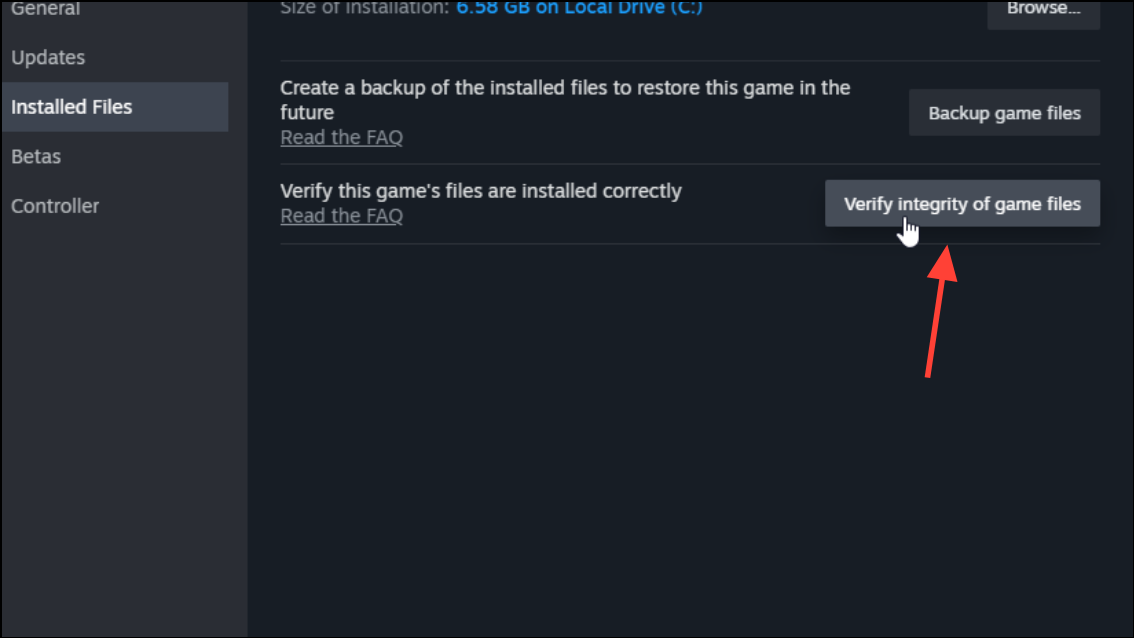
Solution: Ensure you're using the correct extractor for the game's version. Sometimes, an extractor for an older game version won't work on a patched one. Try a different version of the tool or check for updated scripts. Also, verify the game files through Steam (Right-click game > Properties > Installed Files > Verify integrity of game files) to ensure no corruption in the source.
Problem: Recorded audio quality is poor or has background noise.
Solution: When using OBS or similar recording software, check your audio settings. Use a higher bitrate (e.g., 320 kbps for MP3, or WAV/FLAC for lossless). Ensure only the game audio is being captured, not system sounds or microphone input unless intended. Use headphones to prevent microphone bleed. Close unnecessary background applications to reduce system load.
Problem: Extracted audio files are in a weird, unknown format.
Solution: Try using a comprehensive audio analysis tool like 'MediaInfo' to identify the codec. Sometimes, these are variations of common formats. Once identified, you might find a specialized converter or an option in Audacity or VLC that can handle it.
Problem: Game updates break extraction tools.
Solution: This is common. Game updates can change asset packing methods. You'll need to wait for the modding community to update their tools or scripts. Check relevant game forums (e.g., Nexus Mods, Steam Community Hub, Reddit's r/gamedev or r/modding) for the latest information.
Are There Any Specific Considerations for Multiplayer or Online Games?
Yes, multiplayer and online-only games often present additional hurdles when it comes to ripping audio. Here's what to keep in mind:
Anti-Cheat Software: Many online games employ robust anti-cheat systems. Attempting to modify or extract files from these games using direct manipulation tools can sometimes trigger anti-cheat warnings or even lead to temporary or permanent bans. Always exercise extreme caution.
Dynamic Content: Online games often stream content, including audio, dynamically from servers rather than having all assets stored locally. This makes direct file extraction much harder, if not impossible, for certain elements. What you find in local files might only be a fraction of the game's total audio.
Ethical Considerations: While recording your own gameplay audio is generally fine, directly extracting voice lines or unique sound effects from a competitive online game to gain an unfair advantage or to harass other players (e.g., through soundboards) is unethical and potentially against the game's terms of service.
For online games, direct recording via OBS Studio is almost always the safest and most practical method. It avoids touching game files directly and focuses solely on capturing the audio output from your system, which typically falls within acceptable use.
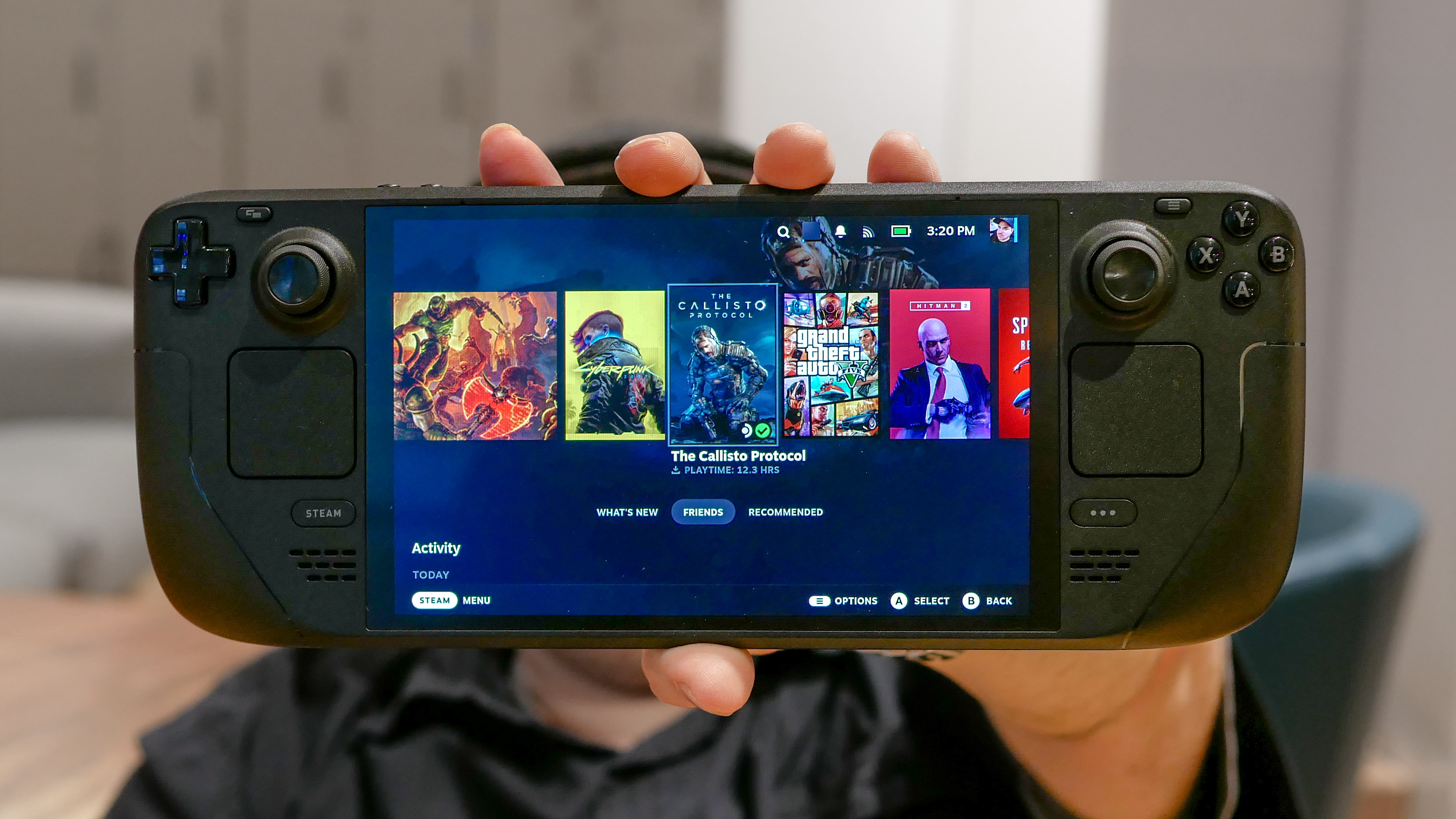
Can I Rip Audio From Steam Deck Games?
Absolutely! The Steam Deck is essentially a portable Linux PC, meaning many of the same principles apply. However, there are some nuances:
Accessing Files: You'll need to switch to Desktop Mode on your Steam Deck. From there, you can navigate the file system just like on a regular PC. Steam games are usually located in
/home/deck/.steam/steam/steamapps/common/.Tools on Linux: OBS Studio is available for Linux and can be installed via Flatpak (Discover Software Center in Desktop Mode). This is your go-to for recording gameplay audio. For file extraction, tools like QuickBMS often have Linux versions or can run via Wine/Proton if they are Windows-only. You might need to be comfortable with the Linux terminal for some command-line tools.
Storage: Ensure you have enough storage space on your Steam Deck or an SD card for both the extracted audio and any temporary files generated during the process. High-quality WAV files can be quite large.
Compatibility Layers: Many Windows games run on Steam Deck through Proton. The game files themselves are often Windows-native, so Windows-based extractors might still be relevant if run through a compatibility layer, but native Linux tools are always preferred when available.
Ripping audio from Steam Deck games offers the same benefits as on a desktop, allowing you to personalize your portable gaming experience even further.
What are the Best Practices for Organizing Ripped Game Audio?
Once you start ripping audio, you'll quickly accumulate a lot of files. Good organization is key to preventing a digital mess and ensuring you can find what you need when you need it.
Consistent Folder Structure: Create a dedicated main folder, e.g., "Ripped Game Audio." Inside, create subfolders for each game. Within each game's folder, you might further categorize by "Music," "SFX," "Voice Lines," etc.
Ripped Game Audio/├── Game Title 1/│ ├── Music/│ └── SFX/└── Game Title 2/├── Music/└── Voice Lines/Descriptive Naming Conventions: Rename generic file names (e.g., "audio_001.ogg") to something meaningful (e.g., "Boss_Theme_Epic.ogg" or "Footstep_Stone_01.wav"). This makes browsing and searching much easier.
Metadata Tagging: If you use a tool like Audacity or a dedicated music tagger (e.g., Mp3tag), add metadata like Artist (Game Developer), Album (Game Title), Track Title, and Genre (Video Game Soundtrack). This enriches your audio library experience.
Backup Your Collection: Audio files can take up significant space. Back up your curated collection to an external drive or cloud storage. Losing hours of extraction and organization effort is a pain point no gamer wants to experience.
Convert to Usable Formats: While you might extract in various formats, convert them to a consistent, widely supported format like MP3 or OGG for playback on most devices. Keep a high-quality WAV archive for editing if space allows.
A well-organized audio library allows you to easily enjoy and leverage your favorite game sounds, making all your ripping efforts truly pay off.
FAQ Section
Here are some quick answers to frequently asked questions about ripping Steam game audio:
How do I find Steam's common folder for game files?
Right-click the game in your Steam Library, go to 'Manage', then 'Browse local files'. This will take you directly to the game's installation folder.Can I rip audio from free-to-play Steam games?
Yes, the process is the same as for paid games. However, free-to-play games, especially online ones, might have stronger anti-cheat or constantly streaming assets, making direct file extraction more challenging. Recording with OBS is usually the safest bet.What's the difference between recording and extracting for audio quality?
Extracting directly from game files generally yields the purest, highest-quality audio as it's the raw asset. Recording captures the mixed audio as it plays, which can be affected by your system's volume, other sounds, and the recording software's settings.Is there a one-size-fits-all tool for ripping audio from all Steam games?
Unfortunately, no. Due to different game engines, file packing methods, and encryption, you'll often need specific tools or scripts for different games. QuickBMS is the most versatile but requires game-specific scripts.Will ripping game audio affect my game's performance or integrity?
No, simply extracting or recording audio does not alter the game files or affect performance. The integrity of your game installation remains untouched unless you actively modify or delete files within the game directory.What if the game has an official soundtrack available for purchase?
If an official soundtrack is available, it's highly recommended to purchase it. This directly supports the developers and often provides high-quality, pre-organized audio without any legal ambiguity. Ripping is typically for sounds not included in official releases.So, there you have it, fellow gamers! The world of Steam game audio is vast and full of hidden gems, and now you have the knowledge and tools to uncover them. Whether you're a casual player who simply wants a cool notification sound or a budding content creator looking for that perfect audio clip, ripping game audio responsibly can truly enhance your connection to your favorite virtual worlds. Remember to always respect copyright and prioritize personal, non-commercial use. Now go forth and enjoy your newfound access to the sounds of your favorite games!
What's your biggest gaming challenge this month? Maybe it's finding time, optimizing performance, or discovering a new social game. Comment below and let's share some tips!
Legal considerations for ripping game audio, various tools for recording and extraction, common audio file formats (OGG WAV MP3), troubleshooting extraction issues, understanding game file structures, ethical usage of ripped audio.
35#1 Gallery how torip steam game audio


Steam March 2026 Client Update Adds Hardware Specs To User Reviews Steam Client Mar 2026 . How To Fix Steam Games Have No Sound Problem NEW 2026 YouTube . Steam Game Recording How To Manage Audio Sources YouTube . How To Fix Microphone Not Working On Steam Game Tech How 1 Steam Voice Settings. Valve Open Source Steam Audio 3D Game Audio Solution Including
#2 Gallery how torip steam game audio


How To Fix Steam Games Have No Sound Problem 2025 YouTube . Ninja Ripper 2 0 3 How To Rip Games From Steam YouTube . Steam Community Guide 2022 Configure Optimal Audio Settings. Nouveaut S Steam 2026 Machine Frame Controller Nouveautes Steam 2026 Machine Frame Controller Valve. 17 Game Gratis Di Steam 2026 Seru Bikin Kamu Ketagihan Jurnal Ngawi 3471022749
#3 Gallery how torip steam game audio



How To Fix No Audio In Steam Games Image 76 1 . Fix No Sound Steam Games Windows 11 10 Fix Steam Games No Sound Issues. Easily.webp. I Tested The New Legion Go S And It S The Steam Deck Killer I Ve Been . Extracting Game Audio A Step By Step Guide To Ripping Game Sounds How To Rip Game Sounds. The Most Played Games On Steam For 2026 So Far Cheat Code Central Most Played Games Steam 2026 2048x1167
#4 Gallery how torip steam game audio
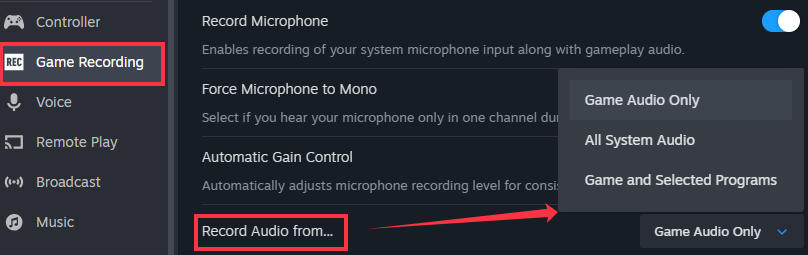
Nuova Steam Machine 2026 Giochi Compatibili E Data Di Nuova Steam Machine 2026.webp. How To Fix No Audio In Steam Games Integrity 1 . How To Return A Game On Steam Complete 2026 Refund Guide Technerdo Image. Steam 2026 EGW News Resized.JPG. Steam Game Recording No Audio Fixed 2026 Steam Recording Aource
#5 Gallery how torip steam game audio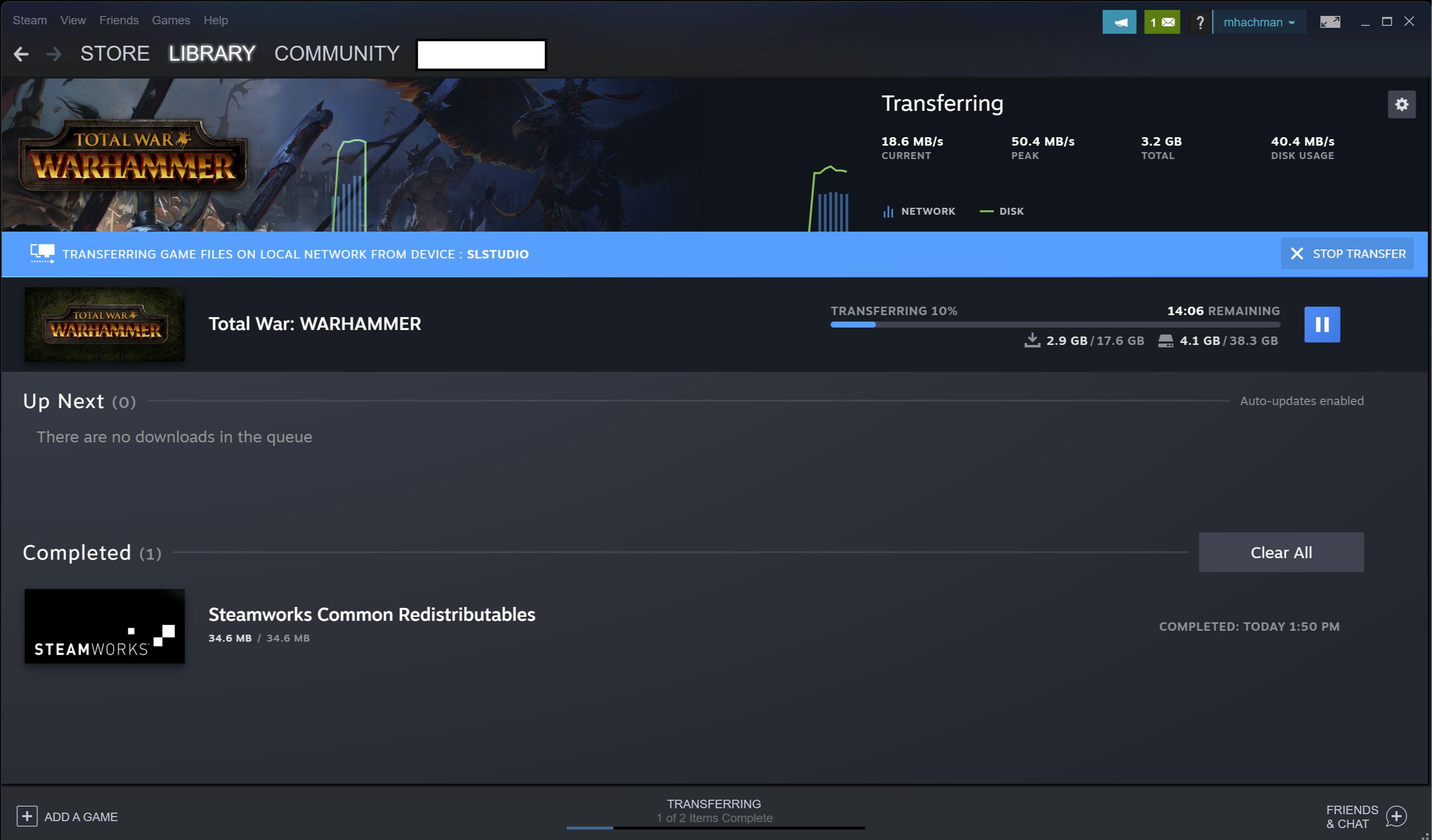
Sonniss Releases GDC 2026 Game Audio Bundle NewsBreak 2Orneh 19f5nbNp00. How To Download Games From At Cathy Remington Blog How To Download Games From Steam 1695367846 . Steam 2026 Ndirimleri Ve Tarihleri Oyunfor . How To Fix No Sound On Steam Games TechCult Fix No Sound On Steam Games 1125x675 . Comunit Di Steam Guida How To Transfer Steam Game Files And Save
#6 Gallery how torip steam game audio


Valve Steam Machine PC Console Hybrid Launches Early 2026 Why It Could Valve Steam Machine 2026 Official Product Photo 1024x512 . 2026 Steam Ndirimleri Ve Etkinlik Takvimi2026 N N Lk Yar S Nda Steam 1 780x470 . Steam Survey For February 2026 Shows A Big Swing To Simplified Chinese Steamos 2025 . Steam Sale 2026 Key Dates You Need To Know LevelUpTalk Steam Sale Schedule 2026 08 27 2025 7c35051e 2c22 4093 96f1. Can T Hear Your Games How To Fix Audio Problems In Steam Guiding Tech Cant Hear Audio Steam Games
#7 Gallery how torip steam game audio

Jadwal Lengkap Steam Sale 2026 Catat Tanggal Diskon Game Favoritmu Game Di Steam . Steam Game Recording Rolls Out Of Beta For PC Mac And Steam Deck Steam Game Recording . Steam Community Guide How To Fix Your In Game Voice Chat. How To Amplify Microphone Input Sound On Steam How To Increase . How To FIX Steam Games No Audio Sound Not Working YouTube